Viewing and Syncing Configuration Template Drifts
You can view configuration differences between applied configurations and their templates and synchronize them to maintain consistency. This feature helps ensure that all configurations remain aligned with the defined template settings.
Note:
- You must have an Admin or Prime Admin role to use this feature.
- The Show Drifts and Sync options are available only for templates that have been applied to venues, networks, or devices and have a status of Drift Detected.
Complete the following steps to view and synchronize configuration template drifts:
-
Select the configuration template having
the Drift Detected status by clicking the radio button next to the
Name field.
If you have a long list of templates, you can use the Drift Status filter to quickly view only templates having the Drift Detected status.
Configuration Templates - Filtered By Drift Detected Status 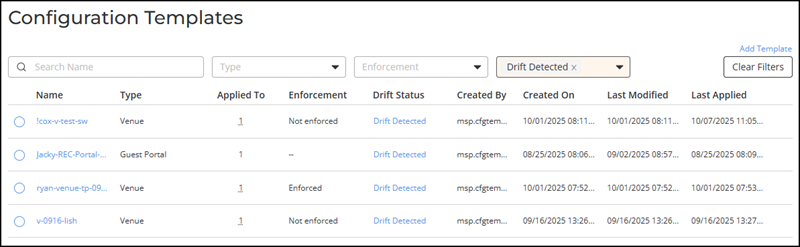
-
Click Show Drifts to view differences
between the applied configuration and the template.
The Drifts Report sidebar is displayed.The Drifts Report lists either the associated venues or configuration details, depending on the template type.
- For Venue-based templates: The
Drifts
Report displays a list of all venues where the template is applied.
To synchronize:
- Select the Sync all drifts for all venues checkbox.
- Choose the desired venue from the drop-down menu.
- Click Sync to apply changes.
Configuration Templates - Drifts Report for a Venue Template 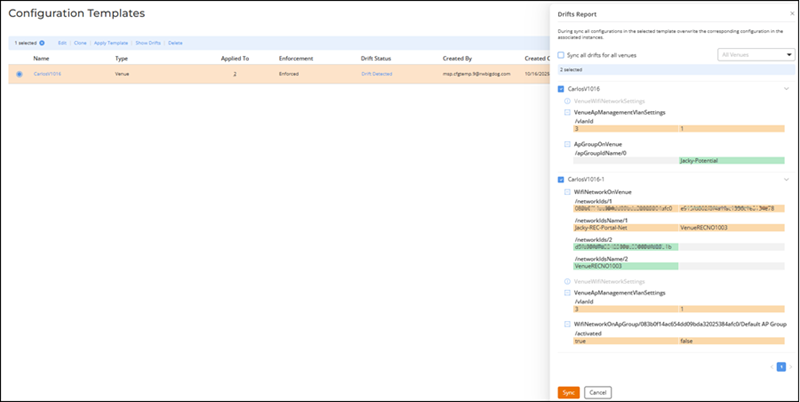
- For non-Venue templates: The
Drifts Report sidebar lists all configuration parameters that
differ from the template. Review the differences and click Sync to realign the
applied configuration with the current template version.
Configuration Templates - Drifts Report for a Guest Portal 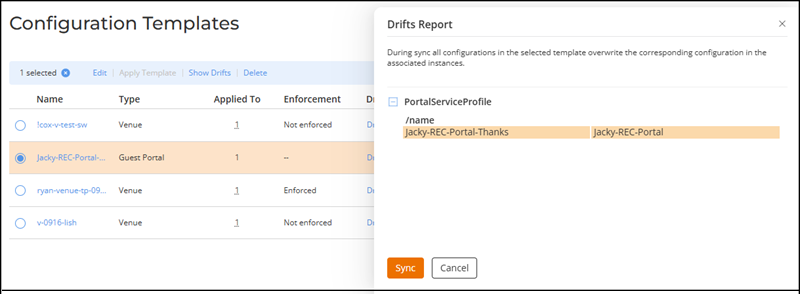
- For Venue-based templates: The
Drifts
Report displays a list of all venues where the template is applied.