Adding and Managing Configuration Templates

Administrators can create and manage configuration templates with predefined settings and variables to simplify and standardize network setup across the tenant.

Note: The Configuration Template feature is available only for RUCKUS One accounts that manage their own networks (not managed by a Managed Service Provider (MSP) and requires a Professional account tier with an Admin or Prime Admin role.
Complete the following steps to create a configuration template.
  1. In the navigation bar, select Templates.
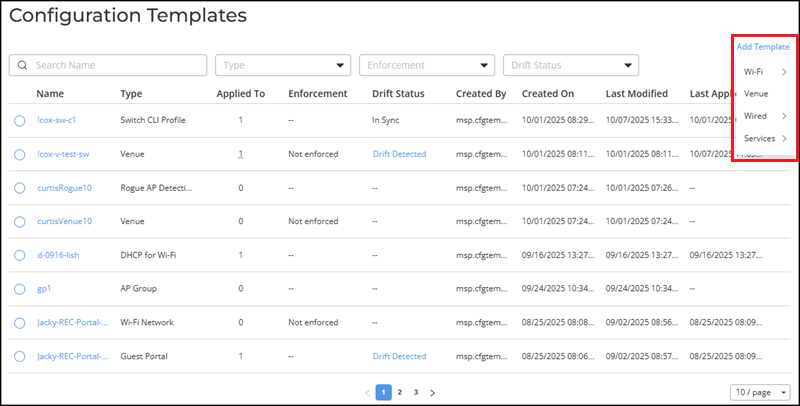
    The Configuration Templates page is displayed with the following information:
    • Name: Displays the template name as a hyperlink. Clicking the hyperlink opens the Template Details sidebar.
      The Template Details sidebar displays the following information: Template Name, Type, Drift Status, Enforcement, Created By, Created On, Last Modified, Last Applied, and Configuration Details.
      • Drift Status: Displays the current drift status. If a drift is detected, a Drift Detected hyperlink appears. Clicking the hyperlink opens the Drifts Report sidebar. Refer to Viewing and Syncing Configuration Template Drifts for more information.
      • Configuration Details: The View Configuration hyperlink opens the configuration details page for the selected template and displays all defined parameters and values. When a template is enforced, all fields appear in read-only mode. For non-enforced templates, click Configure to modify editable fields. The View Configuration hyperlink appears only for templates that contain saved configuration data; the hyperlink is inactive when no configuration is available.
        Note: The View Configuration hyperlink is not available for Switch CLI Profile and Switch Regular Profile templates. Its visibility is independent of the enforcement setting.
    • Type: Displays the template category, such as Wi-Fi Network, Venue, or Service.
    • Applied To: Displays the number of venues, networks, or devices where the template is applied.
    • Enforcement: Displays whether the template is enforced or not enforced. If -- is displayed, the template is not enforced and the Enforcement template configuration option is not supported by the template type.
    • Drift Status: Displays the current drift status. If In Sync is displayed, there is no drift between the template and its instances, indicating that all changes have been successfully synchronized. If a drift is detected, a Drift Detected hyperlink appears; clicking the hyperlink opens the Drifts Report sidebar. If -- is displayed, the template has never experienced drift. Once drift is detected, the status changes to Drift Detected. After a successful synchronization, it updates to In Sync. Thereafter, the status alternates between Drift Detected and In Sync, and does not revert to --.
    • Created By: Displays the username of the administrator who created the template.
    • Created On: Displays the date and time when the template was created.
    • Last Modified: Displays the date and time when the template was last modified.
    • Last Applied: Displays the date and time when the template was last applied. If -- is displayed, the template has never been applied to any device.

      You can use the Search option to display only the table entries matching the specified name; enter a minimum of two characters. Additionally, you can filter the list of configuration templates by selecting options from the drop-down menus of the Type, Enforcement, and Drift Status fields. The type menu supports multiple selections, including Access Control, AP Group, Application Policy, Device Policy, DHCP for Wi-Fi, DPSK, Guest Portal, Layer 2 Policy, Layer 3 Policy, RADIUS Server, Rogue AP Detection, Switch CLI Profile, Switch Regular Profile, Syslog Server, Venue, VLAN Pool, Wi-Fi Calling, and Wi-Fi Network. The enforcement options are Enforced and Not Enforced. The drift status options are Drift Detected and In Sync. Use the Clear Filters option to remove the applied filters.

  2. On the Configuration Templates page, click Add Template.
    A drop-down menu listing template options is displayed.
    Configuration Templates - Add Template
  3. Select a template type and follow the on-screen instructions to complete creating the configuration.
    Note: Configuration templates in RUCKUS One do not support Identity Group configurations.
    • Wi-Fi: Select this option to create a Wi-Fi network or AP Group configuration template. The following options are available:
      • Wi-Fi Network: Select this option to create a Wi-Fi network configuration template. Refer to Wireless Networks Overview for configuration details. The Enforce template configuration option appears on the configuration page. Toggle it on to ensure that all direct changes on template-activated elements are blocked to enforce compliance with the template configuration.
      • AP Group: Select this option to create an AP group configuration template. Refer to Adding an AP Group for configuration details.
    • Venue: Select this option to create a venue configuration template. Refer to Adding a Venue for configuration details. The Enforce template configuration option appears on the configuration page. Toggle it on to ensure that all direct changes on template-activated elements are blocked to enforce compliance with the template configuration.
    • Wired: Select this option to create a configuration template for RUCKUS ICX switches. The following options are available:
    • Services: Select this option to create a service configuration template. The following options are available:
      • Access Control: Select this option to create an access control configuration template. Refer to Creating an Access Control Policy for configuration details.
      • DHCP for Wi-Fi: Select this option to create a DHCP service configuration template for Wi-Fi. Refer to Adding and Managing a DHCP Service Profile for Wi-Fi for configuration details.
      • DPSK: Select this option to create a DPSK service configuration template. Refer to Adding a DPSK Service for configuration details. The Enforce template configuration option appears on the configuration page. Toggle it on to ensure that all direct changes on template-activated elements are blocked to enforce compliance with the template configuration.
      • Guest Portal: Select this option to create a guest portal configuration. Refer to Adding a Guest Portal Service for configuration details.
      • RADIUS Server: Select this option to create a RADIUS server configuration template. Refer to Adding and Managing a Radius Server Profile for configuration details. The Enforce template configuration option appears on the configuration page. Toggle it on to ensure that all direct changes on template-activated elements are blocked to enforce compliance with the template configuration.
      • Rogue AP Detection: Select this option to create a rogue AP detection configuration template. Refer to Creating a Rogue AP Detection Policy for configuration details.
      • Syslog Server: Select this option to create a syslog server configuration template. Refer to Creating a Syslog Server Policy for configuration details.
      • VLAN Pools: Select this option to create a VLAN pool configuration template. Refer to Creating a VLAN Pool for configuration details.
      • Wi-Fi Calling: Select this option to create a Wi-Fi calling configuration template. Refer to Adding the Wi-Fi Calling Service for configuration details. The Enforce template configuration option appears on the configuration page. Toggle it on to ensure that all direct changes on template-activated elements are blocked to enforce compliance with the template configuration.
        Note: When the Enforce template configuration toggle is turned on, enforcement applies only to instances created from the template, excluding the template details page. Instances created from the template become read-only and cannot be edited or deleted. You can open the Edit page, but the system prevents you from saving any changes.
  4. (Optional) You can manage configuration templates from the Configuration Templates page using the following options:
    Configuration Templates - Template Management Options
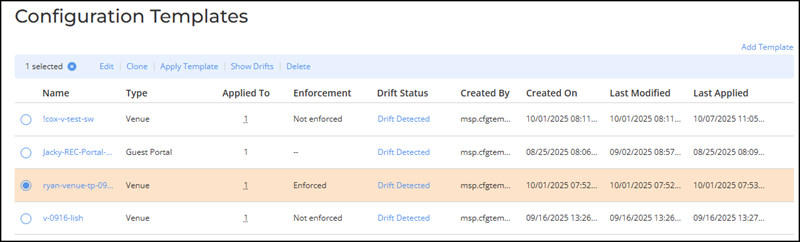
    Note: Available options differ based on the type of template selected and whether drift is detected.
    • Edit: Select the radio button next to the Name column and click Edit.
      The selected template page is displayed, showing fields and tabs specific to the template type. You can view or modify configuration details and click Save to apply changes.
      Note: For template types that support configuration enforcement, the Enforce template configuration option appears on the configuration page while editing. You can toggle it on if you want to apply enforcement or toggle it off to disable template enforcement.
    • Clone: Select the radio button next to the Name column and click Clone.
      A Clone Template dialog box appears where you can enter the new Name (up to 32 characters) and click Save.
      Note: The Clone operation is supported only for Wi-Fi Network, Venue, DPSK, and Wi-Fi Calling configuration templates.
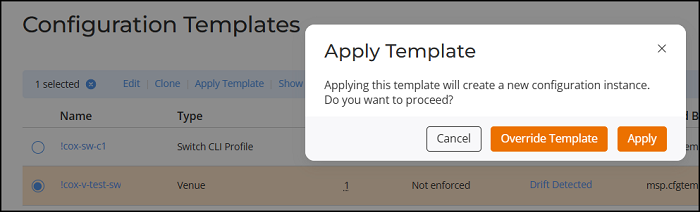
    • Apply Template: Select the radio button next to the Name column and click Apply Template.

      In the Apply Template dialog box, click Override Template to replace the existing configuration or Apply to create a new configuration.

      Note: The Apply Template option is supported for all configuration templates, while the Override Template option is supported only for Venue templates.
      Configuration Template - Apply Template Dialog Box for a Venue Template
    • Show Drifts: Select the radio button next to the Name column and click Show Drifts to view and synchronize configuration differences between the applied configuration and the template. Refer to Viewing and Syncing Configuration Template Drifts.
      Note: The Show Drifts and Sync options are available only for templates that have been applied to venues, networks, or devices and have a status of Drift Detected.
    • Delete: Select the radio button next to the Name column and click Delete.

      A delete configuration confirmation dialog box appears. Click Delete Config Template to confirm deletion.