Managing Pending AP Assets
The Pending AP Assets feature enables Managed Service Provider (MSP) accounts to monitor, restrict, and claim unassigned access points (APs) before associating them with end‑customer venues. This feature provides clear visibility into claim readiness, connectivity status, and MSP ownership restrictions to support controlled onboarding.
While in this venue, APs can connect to RUCKUS One and report their connection status, IP address, and external IP address, which are displayed in the Pending Assets table.
- This feature applies only to AP assets in MSP accounts.
- Restricted APs in Pending Assets do not consume AP licenses. AP licenses are required only when devices are claimed to an end‑customer venue. If sufficient licenses are unavailable, the system blocks the claim action.
- In MSP accounts, if you delete an AP from an end‑customer venue, the system does not return the AP to the Pending Assets table.
-
Select the Pending Assets
tab.
The Pending Assets page is displayed, defaulting to the AP sub-tab with the following information:
- Serial #: Displays the manufacturer‑assigned serial number that uniquely identifies the AP.
- Source: Displays the origin from which the AP record was added, such as Salesforce or Manual import (CSV).
- Model: Displays the hardware model of the AP.
- Ship
Date: Displays the shipment date of the AP as provided by
the originating system.Note: The Ship Date is populated only for devices synced from Salesforce.
- Created
Date: Displays the date on which the AP record was first
added to Pending Assets.Note: The Created Date is populated only for devices synced from Salesforce.
- Claim
Status: Displays the current claim state of the AP. The
available statuses are:
- Ready: Indicates that the AP is eligible to be claimed.
- Hidden: Indicates that the AP is hidden from the default view but can still be claimed when Show hidden devices is enabled.
- Claim Failed: Indicates that the most recent claim attempt did not succeed. APs with this status can be claimed again after the issue is resolved.
- Connection Status: Displays the current connectivity status of the AP.
- IP Address: Displays the internal IP address reported by the AP when connected.
- Ext. IP Address: Displays the external IP address reported by the AP when connected.
- Restrict to MSP: Displays whether the AP is restricted to the MSP.
You can use the Search option to display only the table entries matching the specified Serial #, Model, Claim Status, IP Address, Ext. IP Address, or Source; enter a minimum of two characters. Additionally, you can filter the list by selecting one of the options from the drop‑down menus of the Model, Connection Status, and Created Date. The connection status options are Operational, Offline, In Setup Phase, Transient Issue, and Requires Attention. Click Clear Filters to reset the filters. You can sort the list by clicking the associated column header.
You can customize which fields appear in the table by clicking the
 icon and selecting or deselecting the desired column names. Drag and drop
individual column names up or down the list to customize the left‑to‑right
column display in the table. Optionally, you can click Reset to
default to restore the default subset of
columns.
icon and selecting or deselecting the desired column names. Drag and drop
individual column names up or down the list to customize the left‑to‑right
column display in the table. Optionally, you can click Reset to
default to restore the default subset of
columns. -
(Optional) Click or hover over
the drop-down arrow next to the
 icon to display the Restrict Device Claiming to MSP switch. The switch is disabled
by default and can be toggled on at the page level when needed.
Note: By default, the Restrict Device Claiming to MSP switch is disabled during import and refresh operations. When the switch is enabled, only the current MSP can claim the listed APs. The selected APs are moved to the Pending Assets Venue, where they remain restricted to the MSP.
icon to display the Restrict Device Claiming to MSP switch. The switch is disabled
by default and can be toggled on at the page level when needed.
Note: By default, the Restrict Device Claiming to MSP switch is disabled during import and refresh operations. When the switch is enabled, only the current MSP can claim the listed APs. The selected APs are moved to the Pending Assets Venue, where they remain restricted to the MSP.Pending Assets - Restrict Device Claiming to MSP (When Enabled) 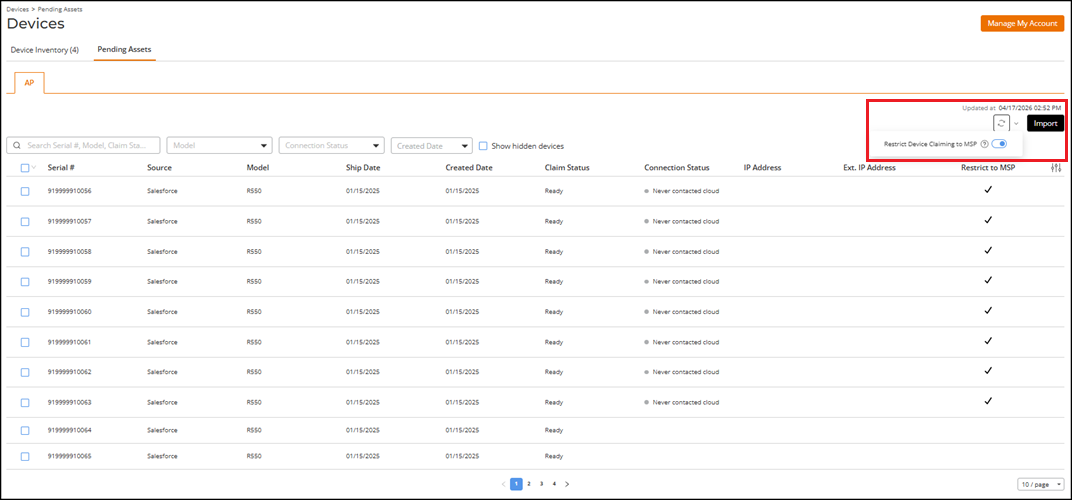
-
(Optional) Click the icon to reload the latest pending asset
information.
Note: Refreshing the list syncs data with Salesforce. This operation adds newly discovered APs and updates existing records, including those previously added through manual CSV import.
-
Click the checkbox for one or
more APs to display and access the available management options:
- Claim Device: Allows you to assign the selected APs to an end‑customer venue.
- Hide
Device: Allows you to hide the selected APs from the
default view.Note: Hidden devices can still be claimed when Show hidden devices is enabled.
- Restrict to MSP: Moves the selected APs into the system‑managed, read‑only Pending Assets Venue, binding them to the MSP.
- Unrestrict from MSP: Removes the selected APs from the Pending Assets Venue, allowing them to be claimed by another tenant.
Note: You can perform claim, restrict, unrestrict, and hide actions on up to 10,000 APs at a time.Devices - Pending Assets - Management Options 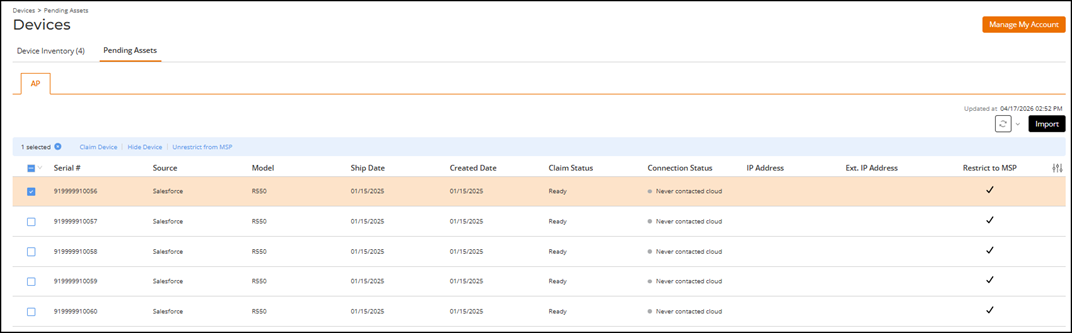
-
(Optional) Claim one or more APs by clicking the associated checkbox(es) and
then clicking Claim
Device.
The Claim Device sidebar is displayed.
Claim Device 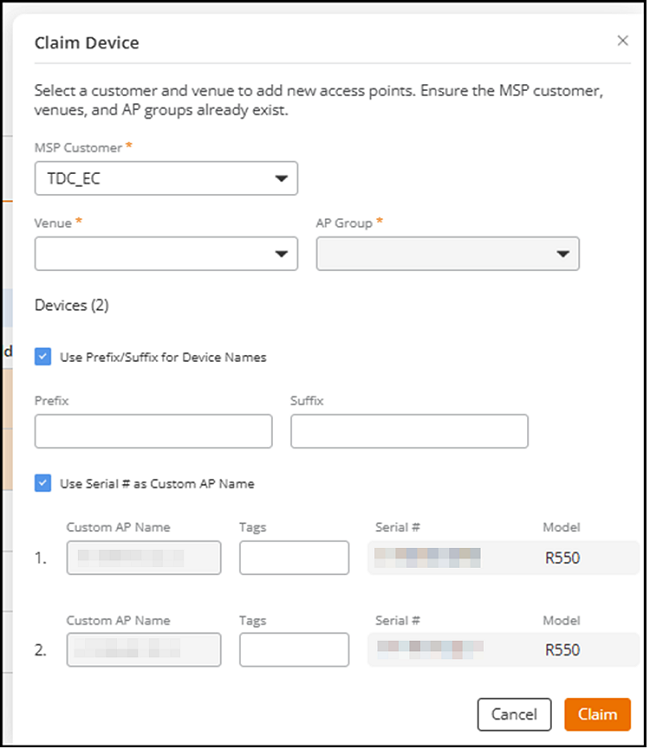
-
(Optional) Click Import.
The Import from file sidebar is displayed.
Complete the following steps to import Pending AP Assets:
-
Click the
 icon to view the import status.
After an import operation completes, the Activities sidebar displays the import result, including the number of pending assets imported successfully and the number that failed. When failures occur, you can download a detailed error report directly from the corresponding activity notification.Note: Reports are also available for download by clicking Manage My Account and selecting .
icon to view the import status.
After an import operation completes, the Activities sidebar displays the import result, including the number of pending assets imported successfully and the number that failed. When failures occur, you can download a detailed error report directly from the corresponding activity notification.Note: Reports are also available for download by clicking Manage My Account and selecting .
-
Click the