To enable or disable AI-driven features
from IntentAI automation, complete the following steps:
From the navigation bar, select AI Assurance > AI Analytics > IntentAI. The IntentAI page is displayed.
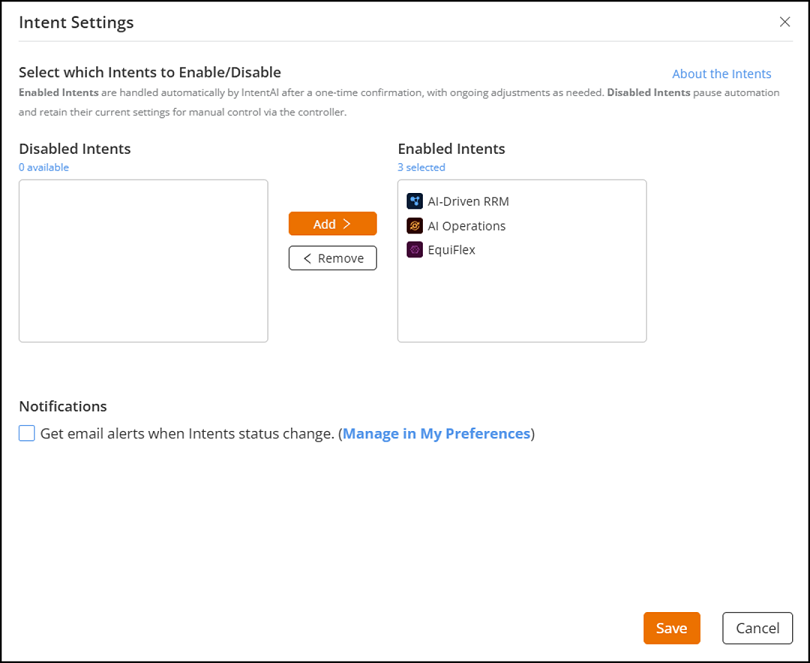
Click Intent
Settings. The Intent Settings sidebar is
displayed.
Intent
Settings
Select the required Intents and
use the Add or Remove buttons to
move it between the Enabled Intents and Disabled
Intents lists.
Note: Access to IntentAI features depends on the license
tier. All features are available for selection in the Professional Tier,
whereas in the Essentials Tier, features exclusive to the Professional Tier
appear greyed out and cannot be selected.
(Optional) Select the Get email alerts when Intent status
changes checkbox under Notifications to
receive status updates.
You can also manage this setting from the Notifications Preferences
sidebar in the Notifications tab of the Account
Management page. For quick access, click Manage in
My Preferences to open the Notifications Preferences
sidebar. For more information, refer to Configuring Global
Notifications section.
Click Save to apply the changes.
All
modifications to Intent Settings are audit-logged. Any update, such as enabling or
disabling an AI-driven feature, is recorded with the timestamp, user, and action
details in the Timeline (Activities).