You can use configuration template
bundles to organize and manage related templates in a hierarchical view, where each
top-level (root) template is linked to one or more downstream templates. The feature
supports multiple viewing modes and provides top-level (root) actions to apply, monitor, or
manage configuration templates efficiently across the network.
Note: Template hierarchies are initially displayed in a collapsed
format, improving the user experience for accounts having numerous or complex
template hierarchies. Expand each template name within a given hierarchy to view its
associated downstream templates.
Complete the following steps to apply a configuration
template bundle:
From the navigation bar, select
Templates.
The
Configuration Templates page is displayed.
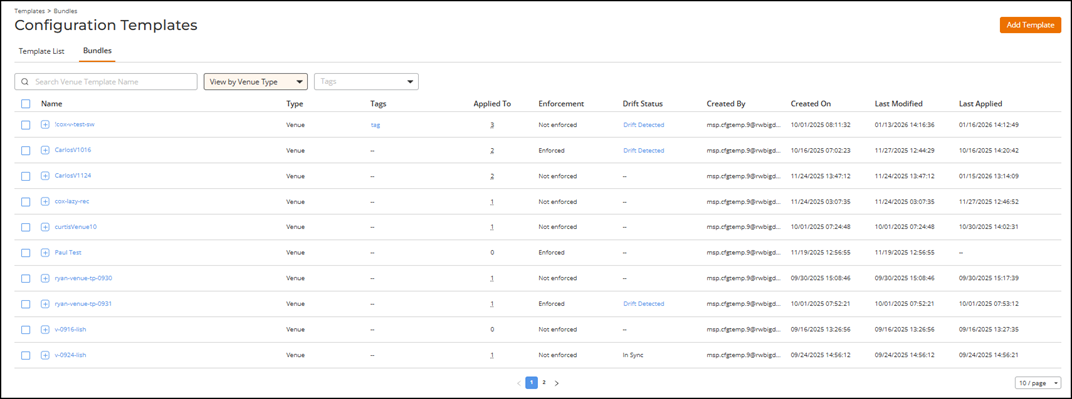
Select the
Bundles tab to view all configuration bundles.
Configuration Templates - Bundles
(Optional) Choose a view mode
from the View
by drop-down list:
View by Venue
Type: Displays bundles organized by venue templates.
This is the default view mode.
View by Network
Type: Displays bundles organized by network templates.
You can use the
Search option to display only the table entries matching the
specified template Name
for the specified Type; enter a minimum of two characters. You can
sort the list by clicking the associated column header.
Note: Search and sort apply only to top-level
templates.
Expand the bundle by clicking
the icon next to the template name to view the
downstream templates.
Select the radio button next to
the Name column to display
and access the following options:
Apply
Bundle
Note: Only the top-level
template can be selected to apply the configuration bundle.
Downstream templates are read-only.
Show Drifts
Note: If the
selected template has a Drift
Detected status, the Show
Drifts option is displayed next to the
Apply Bundle option.
Click Apply Bundle.
The Apply
Template dialog box is displayed with a message indicating that
it will apply the selected template(s) and create new configuration instance(s).
(Optional) Click Override Template
to modify the selected venue template values before applying the
configuration.
The Override Venue
Template dialog box is displayed.
Note: An
override allows you to change specific values for the configuration instance
without modifying the original template definition.
Note: The Override
Template feature applies only to the Venue
template.
Enter or update the
required details in the Override Venue Template
dialog box:
Venue
Name: Displays the current template name.
Description: (Optional) Enter a brief
description of the purpose or customization of the
override.
Address: Enter or edit the address. Include the
city and country details. The embedded map automatically updates
based on the entered location.
Wi-Fi Country
Code: This is a read-only field. The country
code can only be added when creating a Venue
Template. Refer to Adding a Venue for configuration details.
The Wi-Fi
country code defines the Wi-Fi channels and power levels
available for access points at the venue. In most cases, it
matches the venue’s location and does not need to be
changed.
Click Override.
The Apply
Template dialog box is displayed again with Venue Override
Values. Hover over the to view the modified configuration
details.
Click Apply.
A toast notification
is displayed confirming that the configuration template bundle has
been successfully applied to the tenant.
Note: Applying a Bundle creates new instances for
each template included in the bundle.
Click Apply to apply
the selected configuration template bundle and create the required configuration
instances.
(Optional) Click Show Drifts to
open the Drifts Report sidebar. Alternatively, click the
Drift
Detected status in the table to view drift details.
The sidebar displays the
configuration drifts that are detected and allows you to reapply templates for
correction. Refer to Viewing and Syncing Configuration Template Drifts for more information.
(Optional) Click the template
Name to view the Template Details.
The Template
Details sidebar is displayed with the following information: Template Name, Type, Drift Status, Enforcement, Created By, Created On, Last Modified, Last Applied, Configuration Details, Active on Networks (if
the template category is Venues), Active on
Venues (if the template category is Wi-Fi Network), and Applied To.
Drift Status:
Displays the current drift status. If a drift is detected, a Drift
Detected hyperlink appears. Clicking the hyperlink opens
the Drifts Report sidebar. Refer to Viewing and Syncing Configuration Template Drifts for
more information.
Configuration
Details: The View
Configuration hyperlink opens the configuration details
page for the selected template and displays all defined parameters and
values. When a template is enforced, the instances appear in read-only
mode. For non-enforced templates, click Configure
to modify editable fields. The View
Configuration hyperlink appears only for templates that
contain saved configuration data; the hyperlink is inactive when no
configuration is available.
Note: The View
Configuration hyperlink is not available for
Switch
CLI Profile and Switch Regular
Profile templates. Its visibility is independent of
the enforcement setting.
 icon next to the template name to view the
downstream templates.
icon next to the template name to view the
downstream templates.
 to view the modified configuration
details.
to view the modified configuration
details.