You can generate certificates for
multiple identities in your RUCKUS One account.
Note: The
Generate Certificate option is available only on the
Identity Group Details page, where all identities belong to the same identity group
and share the required certificate configuration. It is not available on the
Identities page, which lists identities from multiple identity
groups.
Note: You can select up to 100 identities at a
time in a single request, and all selected identities must belong to the same
identity group.
Complete the following steps to generate certificates for
multiple identities:
On the navigation bar, select
Clients > Identity
Management > Identity
Groups.
The Identity
Management page is displayed, defaulting to the
Identity Groups tab.
Click the Identity Group
name.
The Identity Group
Details page is displayed with the configured information for the selected group
and the list of identities.
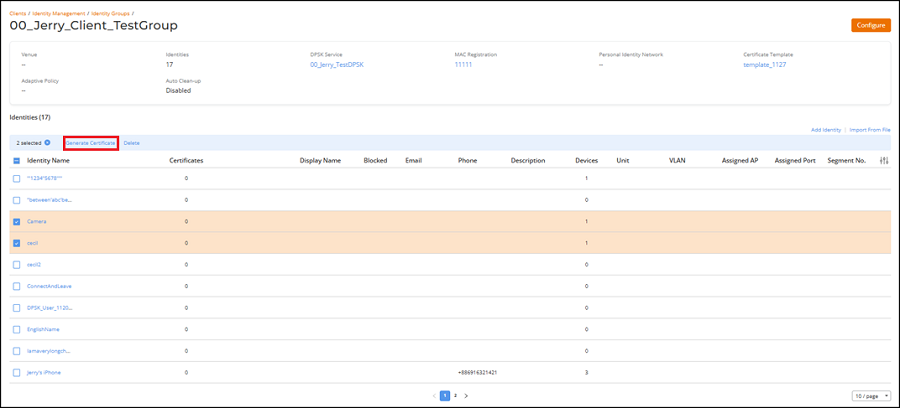
Select the checkbox for one or more identity names, and then click
Generate Certificate.
Note: The Generate Certificate
option is disabled if the identity name contains invalid characters. The
allowed characters for identity names are a–z, A–Z, 0–9, period (.), hyphen
(-), and underscore (_).
Identity Group Details
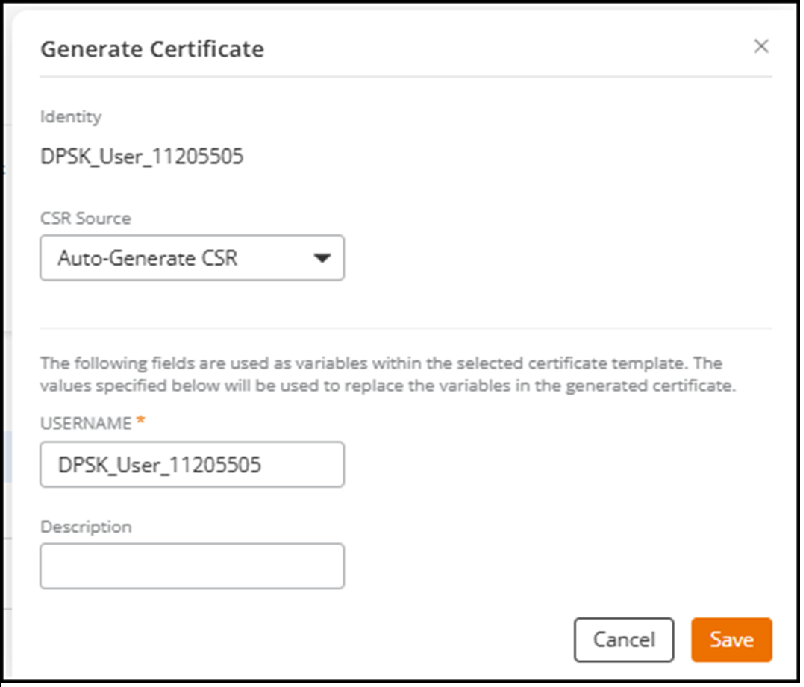
- Generate CertificateThe Generate Certificate sidebar is displayed.Generate
Certificate
Select the CSR Source from
the drop-down list. The options are Auto-Generate CSR
and Copy & Paste
CSR.
If you select Auto-Generate
CSR, the system creates the CSR automatically. If you
select Copy &
Paste CSR, you must paste a valid CSR into the Certificate Signing
Request field.
Copy and paste a valid CSR into
the Certificate Signing
Request field.
Enter a Username. The
value you enter replaces this variable for all selected identities.
Note: When a single identity is selected, the
Username field is editable. When multiple
identities are selected, the Username field is
read-only and applied to all selected identities.
Note: Identities containing invalid characters cannot be
processed, and an error message is displayed. The allowed characters for
identity names are a–z, A–Z, 0–9, period (.), hyphen (-), and underscore
(_).
(Optional) Enter a Description.
Click Save.
After generation, certificate details can be viewed from
the Clients > Identities
List. Click the Identity Name and then open the Certificates tab to view
the certificate information.