Viewing and Managing Connected Clients in a Network
You can view, monitor, and troubleshoot wireless clients connected to a network, including their health, connection details, and traffic information.
-
Select a network name to open
its details page, and then click the Clients tab.
Alternatively, click the clients count to open the
Clients tab directly.
The Clients tab is displayed with a list of connected clients for the selected Wi‑Fi network. Review the following information:
- Hostname: Displays the client device hostname as a hyperlink. Click the hyperlink to view detailed client information.
- OS: Displays the operating system detected on the client device.
- Alias: Displays the alias assigned to the client, if configured.
- Health: Displays the current connection health status of the client.
- MAC Address: Displays the MAC address of the client device.
- IPv4 Address: Displays the IPv4 address assigned to the client device.
- IPv6 Address: Displays the IPv6 address assigned to the client device.
- Username: Displays the username used to authenticate the client, if available.
- Identity: Displays the client identity provided during authentication as a hyperlink. Click the hyperlink to view identity details. If no identity is associated, -- is displayed.
- Venue: Displays the venue to which the client is connected as a hyperlink. Click the hyperlink to view venue details. If no venue is associated, -- is displayed.
- Switch: Displays the switch associated with the client connection as a hyperlink, if applicable. Click the hyperlink to view switch details. If no switch is associated, -- is displayed.
- AP: Displays the access point to which the client is connected as a hyperlink. Click the hyperlink to view access point details. If no AP is associated, -- is displayed.
- AP BSSID: Displays a unique MAC address assigned to an access point radio for a specific frequency band. Each AP typically has one BSSID for 2.4 GHz and one for 5 GHz.
- Radio Type: Displays the radio band used by the client connection.
- RF Channel: Displays the radio frequency (RF) channel on which the client is connected.
- RSSI: Displays the Received Signal Strength Indicator (RSSI) value for the client connection.
- SNR: Displays the signal‑to‑noise ratio (SNR) for the client connection.
- Network: Displays the wireless network (SSID) used by the client.
- Network Type: Displays
the authentication and security type of the wireless network.Note: For DPSK3 networks, the Network Type may appear as DPSK, DPSK3 Service, or DPSK3 Onboard.
- Auth Method: Displays the authentication method used by the client.
- Auth Status: Displays the current authentication status of the client connection.
- Encryption: Displays the encryption method used to secure the client’s wireless traffic.
- VLAN: Displays the VLAN ID assigned to the client traffic.
- VNI: Displays the virtual network identifier (VNI) associated with the client session.
- MLD MAC Address: Displays the MAC address of the multi‑link device (MLD) associated with the client.
- CPE MAC Address: Displays the MAC address of the customer premises equipment (CPE) associated with the client.
- Device Type: Displays the type of client device.
- Model Name: Displays the model name of the client device, if available.
- Traffic (Session): Displays the total amount of traffic generated during the current client session.
- Traffic To Client: Displays the amount of traffic sent from the network to the client during the session.
- Traffic From Client: Displays the amount of traffic sent from the client to the network during the session.
- Packets To Client: Displays the number of packets sent from the network to the client.
- Packets From Client: Displays the number of packets sent from the client to the network.
- Packets Dropped: Displays the number of packets dropped during the client session.
- Time Connected: Displays the length of time the client has been connected to the network.
Clients Tab 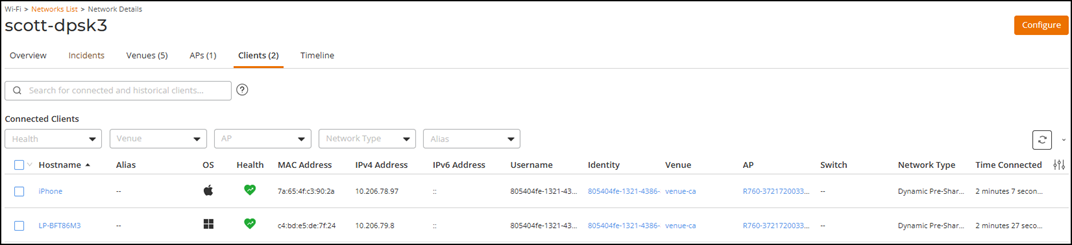 You can use the Search option to display only connected and historical clients that match the specified criteria. Select General to search for clients by properties such as Client MAC Address, Username, Hostname, Identity, OS type, IP Address, VLAN ID, AP BSSID, and Alias, where certain properties apply only to connected clients. The search ignores columns that you choose to hide. Select MAC to search using a MAC address. You can enter the MAC address in commonly used formats, including colon-separated (for example, 00:1A:2B:3C:4D:5E), hyphen-separated (for example, 00-1A-2B-3C-4D-5E), dot-separated (for example, 001A.2B3C.4D5E), and continuous hexadecimal (for example, 001A2B3C4D5E) formats. RUCKUS One automatically processes the entered MAC address and performs the search without requiring you to reformat the value. The search field preserves the format in which the MAC address was entered.Note:
- Search is not case-sensitive for Username and MAC Address.
- IP address searches match exact octet values only. For example, entering 78 matches 10.104.2.78 but not 10.104.2.178.
- Ensure the Auth Method column is enabled to identify Passphrase (PSK/SAE) networks that use MAC authentication.
- Ensure the VLAN column is enabled to view the VLAN assigned to the client.
Additionally, you can filter the list by selecting options from the drop‑down menu of the Health, Venue, AP, Network Type, and Alias fields.
The Health filter includes the following options: All Health Levels, Poor, Average, and Good.
The Venue and AP filters list all configured venues and access points in the system.The Network Type filter supports multiple selections, including the following options: Open Network, Passphrase (PSK/SAE), Dynamic Pre‑Shared Key, Enterprise AAA (802.1X), Hotspot 2.0 Access, and Captive Portal. The Dynamic Pre‑Shared Key option expands to include DPSK, DPSK3 Onboard, and DPSK3 Service. The Alias filter includes All, Alias, and Non-Alias.
You can customize which fields appear in the table by clicking the
 icon and selecting or deselecting the desired column names.
Drag and drop individual column names up or down the list to customize the left‑to‑right
column display in the table. Optionally, you can click Reset to default to restore
the default subset of columns. Click Clear Filters to remove all
applied filters and restore the complete list of clients. You can sort the list by
clicking the associated column header.
icon and selecting or deselecting the desired column names.
Drag and drop individual column names up or down the list to customize the left‑to‑right
column display in the table. Optionally, you can click Reset to default to restore
the default subset of columns. Click Clear Filters to remove all
applied filters and restore the complete list of clients. You can sort the list by
clicking the associated column header. -
(Optional) Click the
 icon to update
the table with the most recent client data. The Auto Refresh toggle automatically
refreshes the table at regular intervals when enabled, ensuring that the displayed client
information remains current without a manual refresh.
Note: Updates to client status may take a short time to appear after performing actions.
icon to update
the table with the most recent client data. The Auto Refresh toggle automatically
refreshes the table at regular intervals when enabled, ensuring that the displayed client
information remains current without a manual refresh.
Note: Updates to client status may take a short time to appear after performing actions.