Viewing MSP Subscriptions and Service Tiers in MSP HSP Edition and MSP MDU Edition
You can view and manage MSP subscriptions to monitor license usage and see the service tier for each subscription, specifically for MSP HSP Edition and MSP MDU Edition of RUCKUS One.
-
On the navigation bar, select
Subscriptions.
The MSP Subscriptions page is displayed.
Subscriptions - MSP Subscriptions 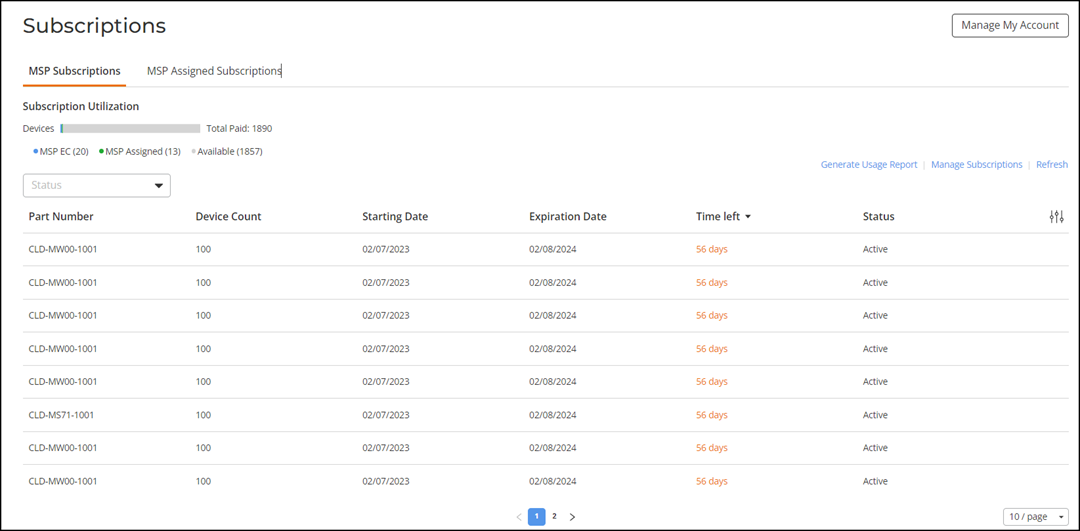
-
On the MSP
Subscriptions page, you can review the list of all MSP
subscriptions.
The page displays the following information:
- Subscription
Utilization: Displays the overall subscription
utilization, indicating how many licenses are in use out of the total
available. It is divided into Paid Licenses and
Trial Licenses
for device networking.
- Device Networking Paid Licenses: Displays the total number of paid licenses for device networking, including Core and Professional tier licenses. The total count is delineated by the number of licenses consumed by MSP EC (End Customers), the number of MSP Assigned licenses (licenses assigned to the MSP's own account), and the number of Available licenses remaining.
- Device Networking Trial Licenses: Displays the total number of trial licenses for device networking. The total count is delineated by the number of licenses that are MSP Assigned (licenses assigned to the MSP's own account) and the number of Available licenses remaining.
- Part Number: Displays the part number (SKU) of the purchased subscription.
- License Tier: Displays the subscribed license tier. For trial licenses, the field displays --.
- License Count: Displays the number of licenses.
- Starting Date: Displays the subscription activation date.
- Expiration Date: Displays the subscription expiration date.
- Time left: Displays the remaining time until the subscription expires.
- Status: Displays the subscription status.
You can customize which fields appear in the MSP Subscriptions table by clicking the
 icon and selecting or deselecting the desired column names. Optionally,
you can click Reset to
default to have the default subset of columns appear in the MSP Subscriptions
table.
icon and selecting or deselecting the desired column names. Optionally,
you can click Reset to
default to have the default subset of columns appear in the MSP Subscriptions
table.You can filter the list of MSP Subscriptions by selecting one of the options from the License Tier and the Status drop-down menus. The License Tier options include All License Tiers (default selection), Core, and Professional. The Status options include Show All, Show Active, Show Expired, Show Future, and Show Active & Future (default selection).
You can sort the list of subscriptions by any attribute; simply click the desired column header to reorder the list. To remove all filters and sorting, click Clear Filters.
- Subscription
Utilization: Displays the overall subscription
utilization, indicating how many licenses are in use out of the total
available. It is divided into Paid Licenses and
Trial Licenses
for device networking.