Creating a Wired Service Validation Test
Complete the following steps to create a service validation test for switches:
- On the navigation bar, select AI Assurance > Network Assurance > Service Validation. The Service Validation page is displayed, defaulting to the Wireless sub-tab.
-
Click Create Test and
select the Wired option. The Create Wired Test
configuration wizard is displayed.
Creating Wired Service Validation Test 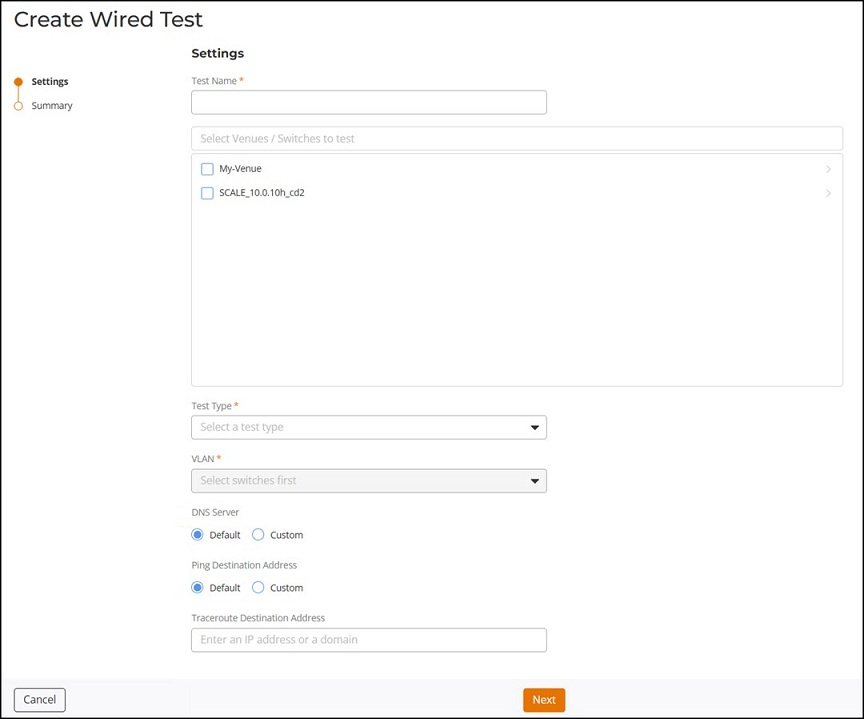
-
On the Settings page, configure
the following fields:
- Test Name: Enter
a unique name for the wired service validation test. The name can
contain up to 255 characters, must not contain whitespace characters
(such as spaces or tabs) or double quotation marks (
"), and must not match an existing wired test name. - Select
Venues/Switches to test: Select the switches on which the test
will be executed.
The network hierarchy displays venues containing switches available for testing. Expanding a venue displays the associated switch groups and switches. Selecting a venue automatically selects all switches under it. You can expand further to select specific switches as required.
- Test Type: Select
how and when the test should be executed.
- On-Demand: Runs the test immediately when triggered.
- Daily: Runs the test every day at the time you specify in the Schedule field.
- Weekly: Runs the test on the day and time you specify in the Schedule fields.
- Monthly:
Runs the test on the date (1st–31st) and time you specify in the
Schedule fields. Note: The test will run on last day of the month if 29th, 30th, or 31st is selected and the month does not have these days.
- VLAN: Select the
VLAN on which the validation test needs to be performed.
The VLAN list is dynamically populated based on the selected switches. Changing the switch selection refreshes the list of available VLANs. If multiple switches are selected, only common VLANs across those switches are available for selection. Only one VLAN can be selected per test.
- DNS Server:
Specify the DNS server to be used for DNS validation.
- Default: Uses the DNS server obtained via DHCP.
- Custom: Allows you to manually specify a DNS server IP address.
Note: The DNS validation test uses www.google.com as the DNS lookup target, which cannot be modified. - Ping Destination
Address: Specify the destination for the ping test.
- Default: Uses the gateway provided by the DHCP server.
- Custom: Allows you to enter an IP address or domain name to test reachability.
- Traceroute Destination Address: (Optional) Enter the IP address or domain name to trace the network path from the VLAN to the destination.
- Test Name: Enter
a unique name for the wired service validation test. The name can
contain up to 255 characters, must not contain whitespace characters
(such as spaces or tabs) or double quotation marks (
- Click Next. The Summary page is displayed.
-
Review the configured settings and click Create to save the test
configuration.
The test is added to the Service Validation table.