Searching for Menu Options and Data
The RUCKUS One UI header contains a global search field allowing you to quickly find sub-menu options and data items across RUCKUS One without manually navigating through the menu hierarchy to find the page or data you need. The search bar returns related menu navigation links containing your search term as well as specific entries from data tables such as Venues, Networks, APs, Switches, Clients, and Events, with results grouped by category.
Examples:
-
Consider the navigation hierarchy. Searching on the term AP List will result in a successful finding of the menu option; searching on Wi-Fi or Access Points (non-clickable navigation path labels) will not result in a successful finding of the AP List menu option.
- Consider the navigation hierarchy. Searching on the term Activities will result in a successful finding of the menu option; searching on Administration or Timeline (non-clickable navigation path labels) will not result in a successful finding of the Activities menu option.
-
Locate the
 icon in the upper-right corner of the application header.
The
icon appears in its inactive state by default. -
Hover over the icon to switch it to its active state, then click
the
 icon to expand the search field.
-
Review the pop-up list of menu
option suggestions grouped by category (Figure 1 shows an example displaying
four category groupings: Clients,
Wi-Fi,
Administration, and Services). Select
a result to open the corresponding page immediately.
Example: Pop-up with Suggested Menu Options 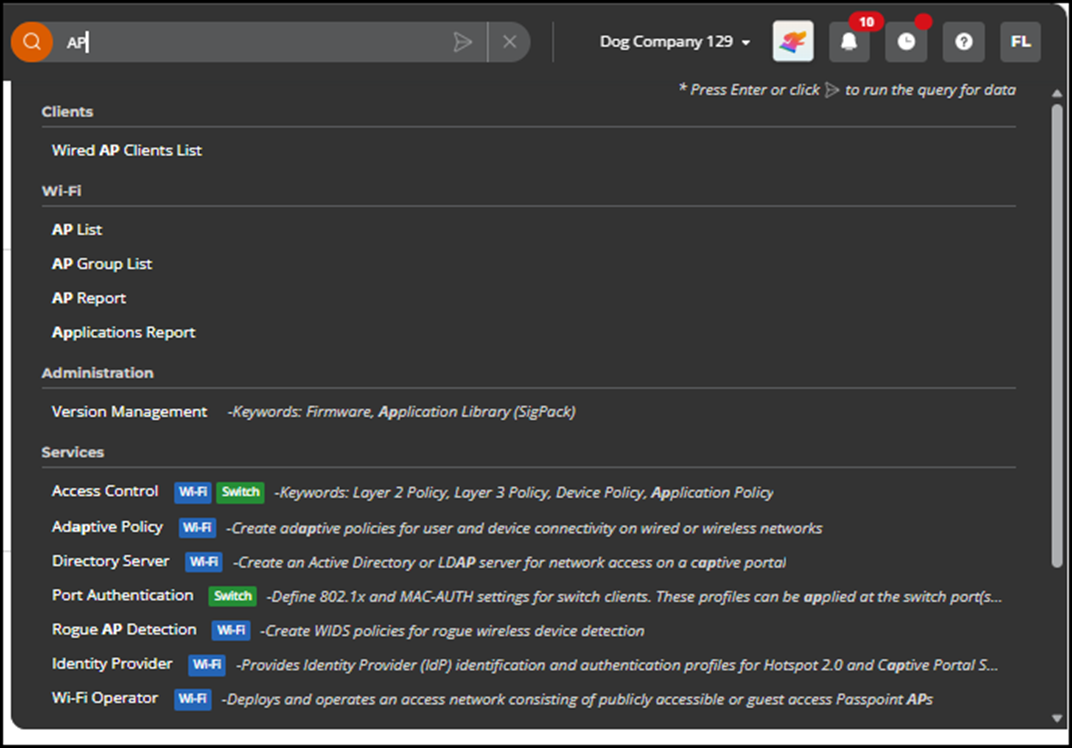
-
Press the
Enter key on your keyboard or click the
 icon to run the query for data entries as well as related navigation links and
view the full Search Results page.
icon to run the query for data entries as well as related navigation links and
view the full Search Results page.
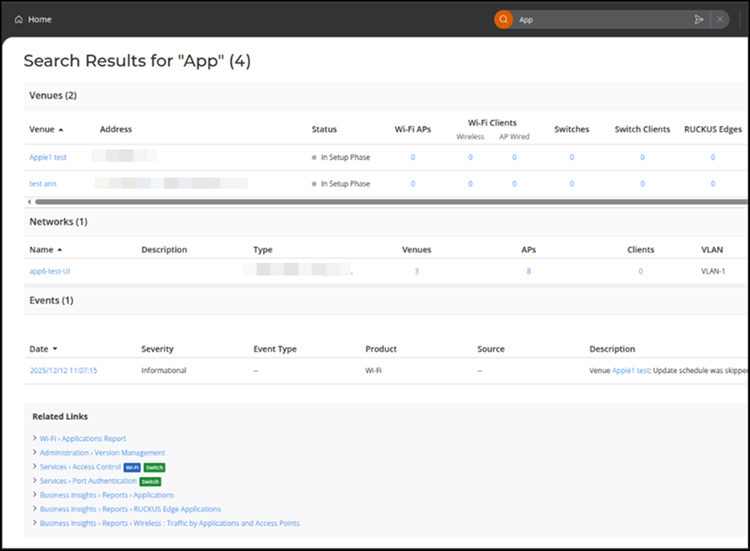
If no data-related results are found, the page displays a message indicating this and suggests alternative search terms. A Related Links section may appear at the bottom of the Search Results page, regardless of whether data entries are found. These links either contain the search term itself or the link's page contains something that includes the search term.
If data-related results are found, matching items are listed from data tables such as Venues, Networks, APs, Switches, Clients, and Events, along with Related Links. These results appear grouped by category.Example: Search Results Page with Data Items and Related Links