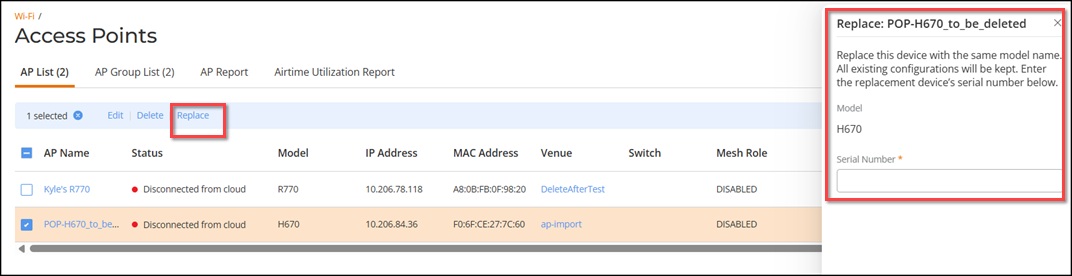
When a physical AP must be replaced, you
can replace the AP in RUCKUS One while maintaining its existing configuration and settings.
AP replacement has the following limitations:
Only one AP can be replaced at a time.
The replacement AP must be of the same model.
An AP in the Never contacted cloud state cannot be replaced. In this case,
delete the AP and Add the new AP.
Complete the following steps to replace an AP.
From the navigation bar, select
Wi-Fi > Access
Points > AP
List. The Access Points page displays a list of
all access points.
From the AP list, select the
access point that you want to replace.
Note: APs can be replaced only one at a time; bulk
replacement is not supported. APs in the Never contacted cloud
state cannot be replaced.
Replacing an
AP
Click Replace. The
Replace: <AP Name> sidebar is displayed.
Enter the serial number of the
replacement AP.
Note: You cannot change the AP model. You can replace the
device only with another AP of the same model.
Note: Replacing an AP preserves the existing configuration
profile, including SSID settings, radio parameters, and policy assignments.
No manual reconfiguration is required.
Click Replace.
The Status column displays the message: Awaiting replacement
device with SN 'serial number' to connect.
If the replacement succeeds,
the AP’s serial number is updated and the AP name remains unchanged.
If the replacement fails, the
original AP serial number is retained and an alarm is generated.