Viewing the AP Status History
The AP Status History page provides historical and current status insights for APs within the selected time range. This page helps you analyze AP availability, connectivity status, reboot activity, alarms, and operational trends across the network.
- Wi-Fi
To view the AP Status History page from Wi-Fi main page, on the navigation bar, select .
To view the details from Business Insights main page. Refer to Access Points Report.
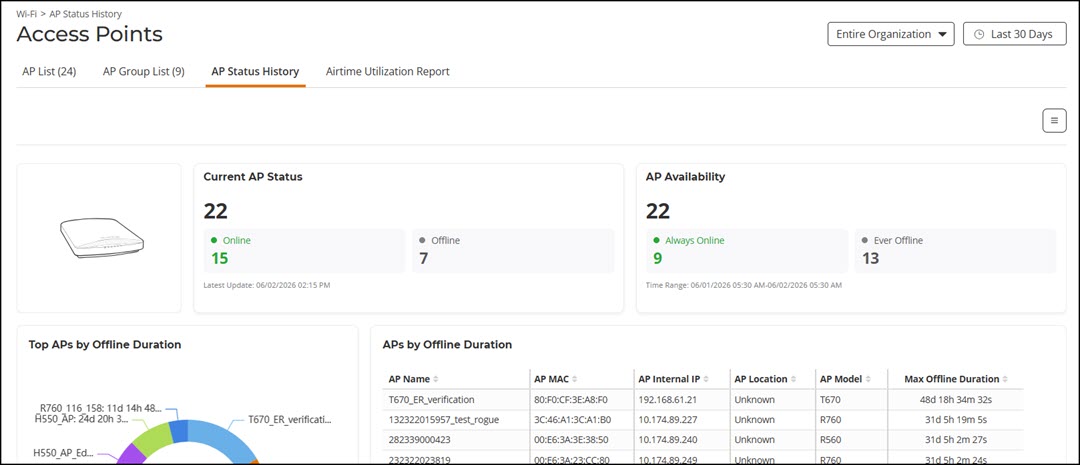
- Overview tile
- Top APs By Offline Duration tile
- AP Count Trend tile
- AP Status tile
- AP Status Trend tile
- Top AP Models tile
- Top AP Software Versions tile
- Top AP Reboot Reasons tile
- Top AP Reboot Reasons Over Time tile
- Top APs by Reboot Count tile
- Top AP Alarm Types tile
- Top AP Alarm Types Over Time tile
- AP Details for Online/Offline Status table
The data displayed is for the selected time period in the Date and Time filter.
Some of the tiles have the option to view the report in graphs and tables. The Graph and Table tabs are displayed on top of the applicable tiles. By default, in those tiles, the reports are displayed in graphical format. If you want to view the report in table format, click the Table tab.
The data displayed on this page is based on the selected Date and Time filter and Network Hierarchy filter. Use the Date and Time filter in the upper-right corner to select a predefined time range or configure a custom date and time range. Use the Network Hierarchy filter to refine the displayed data by network scope.
The top right corner of the page also displays options to download reports in PDF and PNG formats. You can also manage an existing report schedule by enabling or disabling it, modifying its configuration, or deleting it as required.
All of the tiles described above are explained in detail on the AP Report page under the Reports section. Refer to Access Points Report.