Troubleshooting Client Connectivity Using RUCKUS DSE
You can use the RUCKUS DSE (Digital System Engineer) to troubleshoot wireless client connectivity issues. RUCKUS DSE uses the Client Connectivity Troubleshooting Sub-agent to analyze extensive telemetry and Packet Capture (PCAP) data, identify root causes of wireless client connectivity issues, and automatically generate RCA reports with likely causes, diagnostic details, and recommended actions.
The Client Connectivity Troubleshooting Sub-agent streamlines this process by allowing you to request an explanation for a specific client failure; your request must include the wireless client's MAC address and the date and time period of the incident. Using the provided client MAC address and time period, DSE performs the analysis and returns the results in the chat interface. Next, it performs a comprehensive root cause assessment. DSE reviews telemetry data, RUCKUS One configuration logs, and large data sources such as packet captures to identify likely problem areas, present key findings, and outline recommended actions. This evaluation involves substantial data processing, so generating the report can take more than 15 minutes.
DSE uses multiple sources to generate client‑level analysis in English. It supports incident types such as Authentication, Association, DHCP, EAP, and RADIUS. The DSE chat interface lists all active Client Troubleshooting processes running in the background. After a process finishes, you can open and review the generated report.
Complete the following steps to troubleshoot client connectivity issues using the RUCKUS DSE:
-
On the RUCKUS One web interface,
click the Ask DSE button in the UI header.
The RUCKUS DSE welcome message appears in an interactive sidebar, which you can optionally expand to a floating window by clicking the
 icon.
icon.RUCKUS DSE - Expanded Window 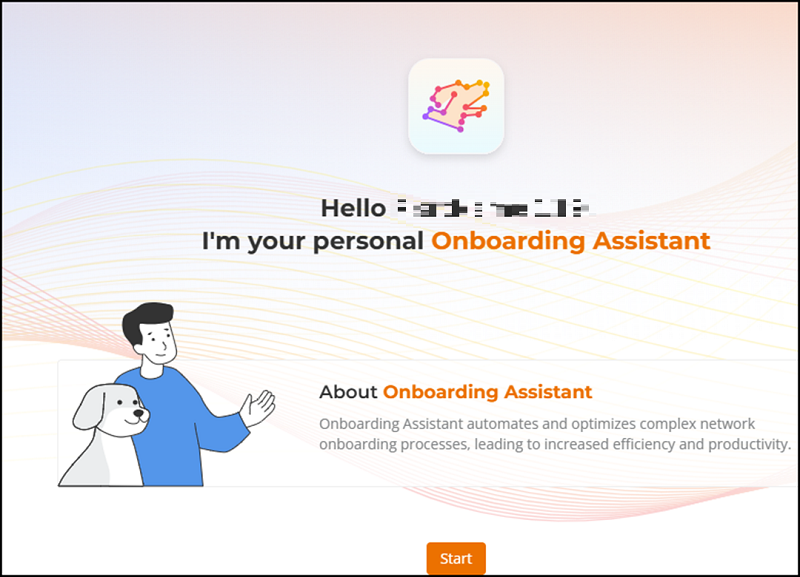
-
In the input field, enter your
question about the client. Provide the client MAC address and the relevant date
and time so that DSE can evaluate the client’s connectivity status. For example:
Why did client
80:39:8c:58:64:18 experience a connection issue on 2026-01-31 at
10am?
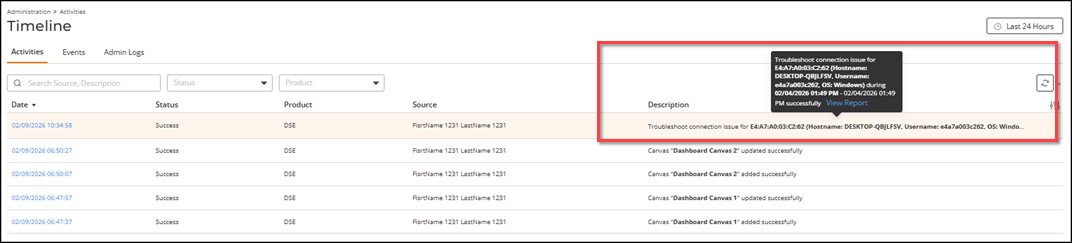
RUCKUS DSE evaluates the client's connectivity state for the specified time and generates a report. At any time, you may click Activity Details to view the basic details of your DSE request and the timeline of DSE efforts.
The following troubleshooting statuses can appear:- In Progress: When DSE is analyzing the client connectivity issue
- Success: When DSE completes the analysis and produces a report
- Failed: When DSE cannot investigate the issue for the given client or the specified date and time
DSE Troubleshooting Client Connectivity 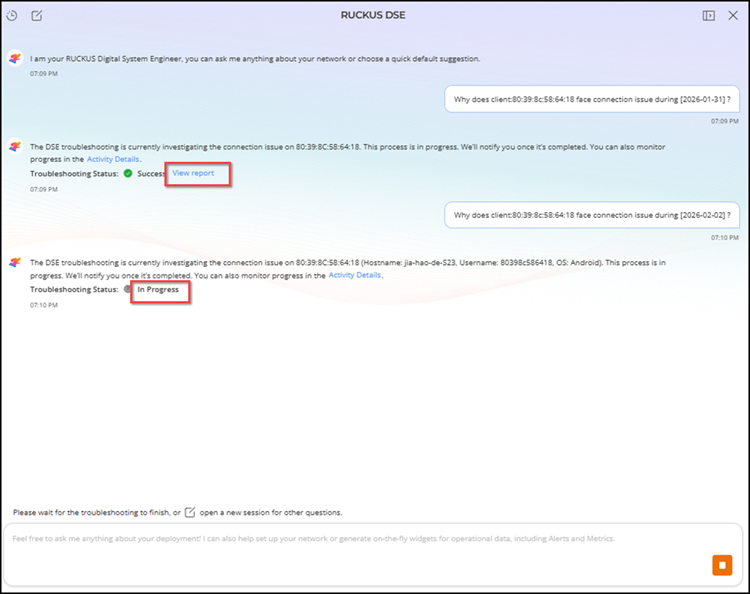
-
Click View report to open the report. The
Troubleshoot Connection Issue window is
displayed.
The report summarizes the findings for the selected client and time range. The report content and scope of information depend on the RUCKUS DSE findings.
When the RUCKUS DSE analysis reveals identifiable failure patterns, the agent includes its hypotheses, root cause details, recommended actions, symptoms and observations, and supporting evidence in the report. The analysis helps administrators understand the likely cause of a client connectivity issue and provides actionable guidance for troubleshooting and remediation.
The report is organized into the following sections:
- Root Cause Hypothesis displays AI-generated hypotheses that may explain the observed issue. Multiple hypotheses may be generated and ranked by confidence score. Each score indicates the probability that a hypothesis contributed to the failure. Each hypothesis includes the relevant observations and contextual information used during the analysis.
- Recommended Actions provides remediation steps associated with each root cause hypothesis. The actions are prioritized to help administrators address the most likely causes first and reduce the likelihood of recurrence.
- Symptoms and Observations summarizes the client, device, and network conditions observed during the troubleshooting period. These observations highlight the events and environmental factors that may be related to the reported issue.
- Supporting Evidence presents the data used to generate and validate each root cause hypothesis. Administrators can review the evidence and access additional details to understand how the conclusions were derived. Evidence may include client events, access point statistics, configuration data, RF metrics, and other telemetry collected during the analysis.
Sample Report with Many Hypotheses and Recommended Actions 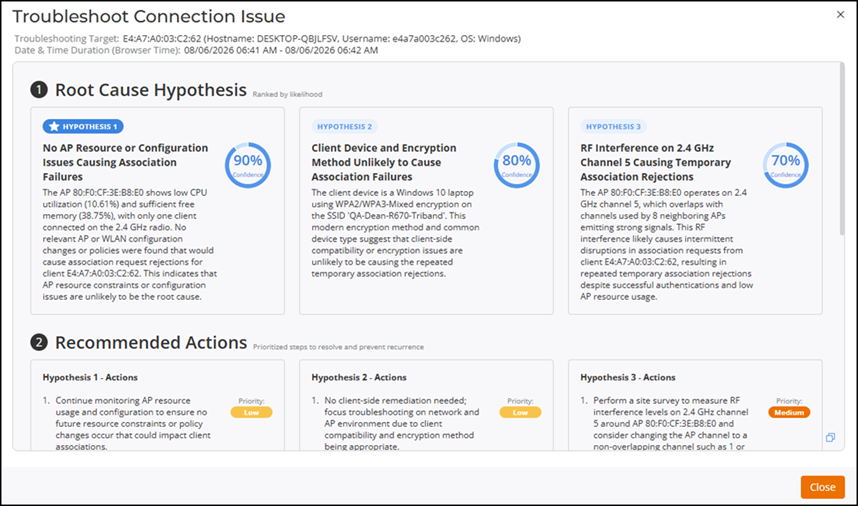
Sample Report with Symptoms and Observations and Supporting Evidence 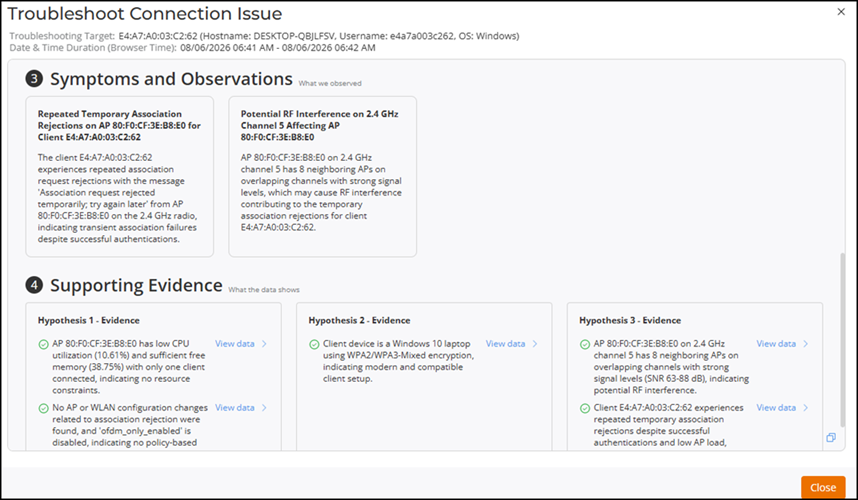
You can click the
 icon to copy the report content (as plain text) into your local system's
clipboard; you may then paste the report content into a local file of your
choosing.
icon to copy the report content (as plain text) into your local system's
clipboard; you may then paste the report content into a local file of your
choosing. You can also view the report from the page.
Viewing Reports from the Activities Page