Deleting APs for an Inactive MSP Customer
You can delete APs that belong to an MSP customer whose Service Status is Inactive.
-
Select the checkbox next to a customer whose Service Status is Inactive
and click Delete APs.
The Delete APs sidebar is displayed.
MSP Customers - Delete APs 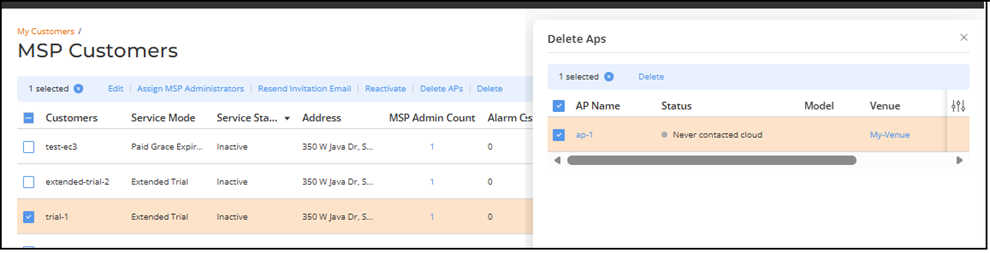
-
Select one or more APs by
clicking the checkbox(es) next to the AP Name
column.
You can use the Search option to display only the table entries matching the specified AP Name, Model, IP Address, MAC Address, Tags, Serial Number, and External IP Address; enter a minimum of two characters.
Additionally, you can filter the AP list using the Status, Venue, AP Group, and Group By drop-down menus: The Status options are Requires Attention, Transient Issue, In Setup Phase, Offline, and Operational. The Venue and AP Group options list the available venues and AP groups configured in your account.
The Group By options are Status, Model, and AP Group. When you group the AP List by Status, Model, or AP Group, the AP List organizes the devices into summarized clusters, allowing you to quickly see how many APs belong to each group and view their associated incidents, connected clients, and network activity at a glance.
Use the Clear Filters option to remove all applied filters.
You can customize which table columns appear in the AP List table by clicking the
 icon and selecting or deselecting the desired
column names. Optionally, you can click Reset to
default to have the default subset of columns appear in the
AP List table.When APs are selected, the Delete button is enabled.
icon and selecting or deselecting the desired
column names. Optionally, you can click Reset to
default to have the default subset of columns appear in the
AP List table.When APs are selected, the Delete button is enabled.