Creating a Network That Uses a Captive Portal with Self Sign In
You can create a network that allows users to authenticate using social media or self-registration credentials.
- Click
Next.
The Onboarding page is displayed.
Self Sign In - Onboarding 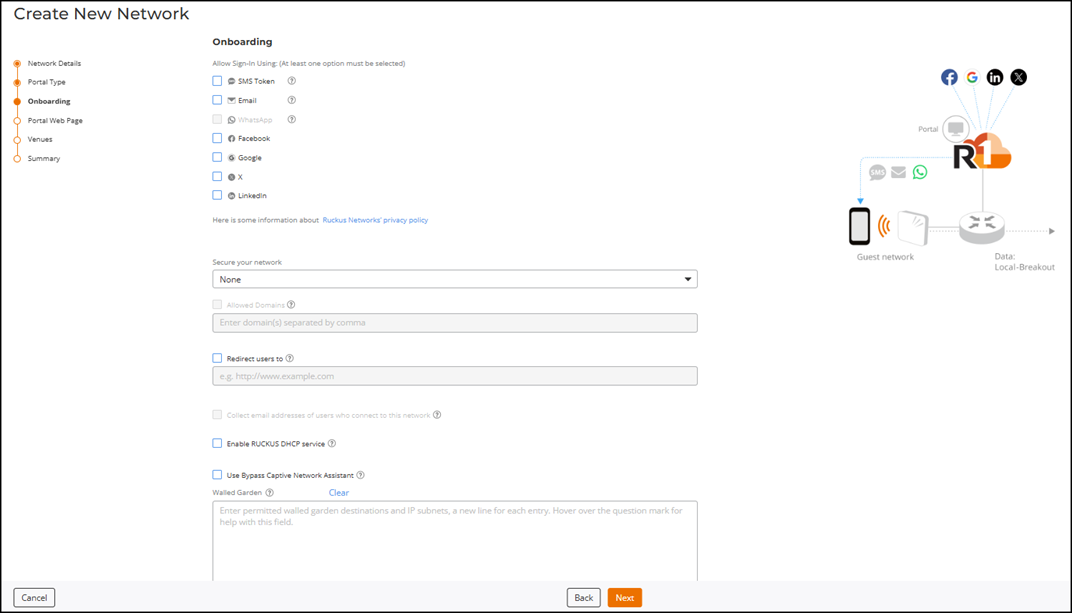
-
Allow Sign-In Using (At least
one option must be selected): Configure Allow Sign-In Using, if you want users to self-register using
their social media accounts, email, or an SMS token.
Note: To enable the Allow temporary connection feature, at least one of the following sign‑in methods must be selected: SMS Token, Email, or WhatsApp. Refer to Configuring the User Connection Settings for a Wi-Fi NetworkIf you created your app on any of these social media platforms and you want to use your app, you can add details when you edit the option. You can select one or more of the following options:
When Allow temporary connection is enabled, the captive portal displays a Temporary Connection Status Banner immediately after the user requests an one time password (OTP) using SMS, Email, or WhatsApp. The banner highlights that a verification message has been sent, indicates how long temporary internet access is available based on the configured duration, and informs the user that their session will briefly restart after successful verification to apply guest policies.
- SMS
Token: Select this checkbox if you want users to receive a
single-use token on their mobile number.
A Password expires after field is displayed and you can select a time period in hours or days after which the password expires. The default is 12 hours.
- Email:
Select this checkbox if you want users to receive a single-use token on
their registered email address. Users have the option to use an
email-based registration process when connecting to the WLAN. Users will
receive a one-time password (OTP) in their email, which will grant them
access to the network.
A Password expires after field is displayed and you can select a time period in hours or days after which the password expires. The default is 12 hours.
- WhatsApp: The Captive Portal's Self Sign In feature via WhatsApp One-Time Passcode (OTP) is supported through the Twilio SMS provider. To enable this functionality, navigate to and add the Twilio SMS provider. This option allows end users to receive OTPs via WhatsApp for self-sign-in. For more information, refer to Configuring an SMS Provider for the Account
- Facebook:
Select this checkbox if you want users to connect to the network using
their Facebook account. Click the Edit
(
 ) icon to view the Edit Facebook App page
and add further configuration. For details, refer to Allowing Sign-In Using Facebook.
) icon to view the Edit Facebook App page
and add further configuration. For details, refer to Allowing Sign-In Using Facebook. - Google:
Select this checkbox if you want users to connect to the network using
their Google account. Click the Edit
() icon to view the Edit Google App page and
add further configuration. For details, refer to Allowing Sign-In Using Google.
- LinkedIn:
Select this checkbox if you want users to connect to the network using
their LinkedIn account. Click the Edit
() icon to view the Edit LinkedIn App page
and add further configuration. For details, refer to Allowing Sign-In Using LinkedIn.
- X :
Select this checkbox if you want users to connect to the network using
their X (Twitter) account. Click the Edit
() icon to view the Edit Twitter App page and
add further configuration. For details, refer to Allowing Sign-In Using X (Twitter).
Click RUCKUS Networks Privacy Policy to view more information on the RUCKUS Networks Privacy Policy.
- SMS
Token: Select this checkbox if you want users to receive a
single-use token on their mobile number.
-
Select one or more venues to activate
the network by clicking the checkbox alongside the venue name, and then toggle the switch
on in the Activated
column.
By default, this network configuration applies across All APs and their applicable radio bands, the VLAN is set to VLAN‑1 (Default), and the network is scheduled to be available 24/7.Note: The Scheduling column displays availability based on the local time zone of the venue’s AP devices (for example, UTC offsets).
-
Click the All APs hyperlink in the
APs column or the list of
radios in the Radios column to
configure APs and radio-frequency bands for the selected venue.
The Select APs dialog box is displayed. Select one of the following options:
- All APs: Select
All APs to
activate the network on all current and future APs for this venue. Choose a radio
band from the drop-down list. You can choose one or more of the supported radio
bands.
Select APs 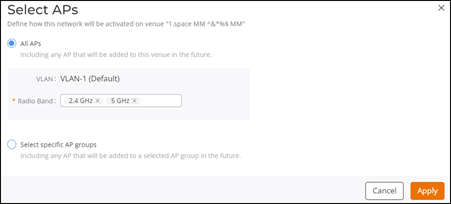
- Select specific AP
groups: Select Select specific AP
groups to activate the network on specific AP groups, including any
AP added to the selected AP groups in the future. The APs not assigned to any
group option is displayed with a checkbox and a reminder to select
an AP Group.
Click the APs not assigned to any group checkbox; the VLAN and Radio Band options are displayed:
Select Specific AP Groups 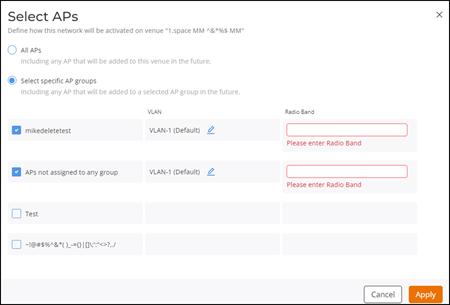
- VLAN: Select
VLAN-1,
which is selected by default. Click the
 icon,
and select a VLAN or a pool from the drop-down list. Depending on the selection, enter the
VLAN ID or select a pool from the drop-down list.
icon,
and select a VLAN or a pool from the drop-down list. Depending on the selection, enter the
VLAN ID or select a pool from the drop-down list. - Radio Band: Select one or more supported radio bands from the drop-down list for the selected AP group.
- Click Apply.
- All APs: Select
All APs to
activate the network on all current and future APs for this venue. Choose a radio
band from the drop-down list. You can choose one or more of the supported radio
bands.
-
Click the 24/7 hyperlink in the
Scheduling
column to customize the schedule.
The Schedule for Network dialog box is displayed.
Schedule for Network Dialog Box  You can choose 24/7 or Custom Schedule. Configure the following if you select Custom Schedule:
- Click Custom Schedule to
customize the network schedule as required.The Custom Schedule has Basic and Advanced tabs.Note: The venue time zone appears at the bottom of the dialog box.
- On the Basic tab, you can
configure the following:
Schedule for Network - Basic Configuration 
- Start Date:
Displays the date when the schedule begins. You can select any future date
using the date picker. The schedule always uses the local time of the AP
devices.Note: When the Start Date is today, time slots that have already passed are disabled.
- (Optional) All day: Select this option to make the network available for the entire day. When All day is selected, the From and To fields automatically disappear.
- From and
To:
These fields appear only when All day is not
selected. You can select the start and end times in 15‑minute intervals, where
the From
time ranges from 00:00 to 23:45, the To time ranges
from 00:15 to 24:00, and the To time must
always be later than the From time.Note: The selected times follow the local time of the venue’s AP devices.
- Select a repeat rule to
determine how the network availability repeats after the Start Date. The
available options are Do not repeat
(default), Repeat
Daily, Repeat Weekly, and Repeat Monthly.
Note: The Do not repeat option displays a one‑time schedule for the selected Start Date.
- End Date:
- Select None or Select date if Repeat Daily is selected. Pick an end date from the date picker when Select date is chosen.
- Select the required weekday, and then select None or Select date if Repeat Weekly is selected. Pick an end date from the date picker when Select date is chosen.
- Select a monthly
recurrence option such as a specific day of every month,
the nth weekday of
every month, or the last weekday of every month, and then select None or
Select
date if Repeat
Monthly is selected. Pick an end date from the date picker
when Select
date is chosen.Note: Selecting at least one weekday is mandatory if Repeat Weekly is selected, and selecting a monthly recurrence option is mandatory if Repeat Monthly is selected.Note: Monthly options depend on whether the Select Date falls on the first through fourth weekday occurrence or the last weekday of the month. Daily, Weekly, and Monthly repeat rules deactivate the network automatically at midnight on the selected End Date.Note: If an End Date is selected, the schedule ends at midnight on that date.
- Start Date:
Displays the date when the schedule begins. You can select any future date
using the date picker. The schedule always uses the local time of the AP
devices.
- On the Advanced tab, you can
configure the following:
Schedule for Network - Advanced Configuration 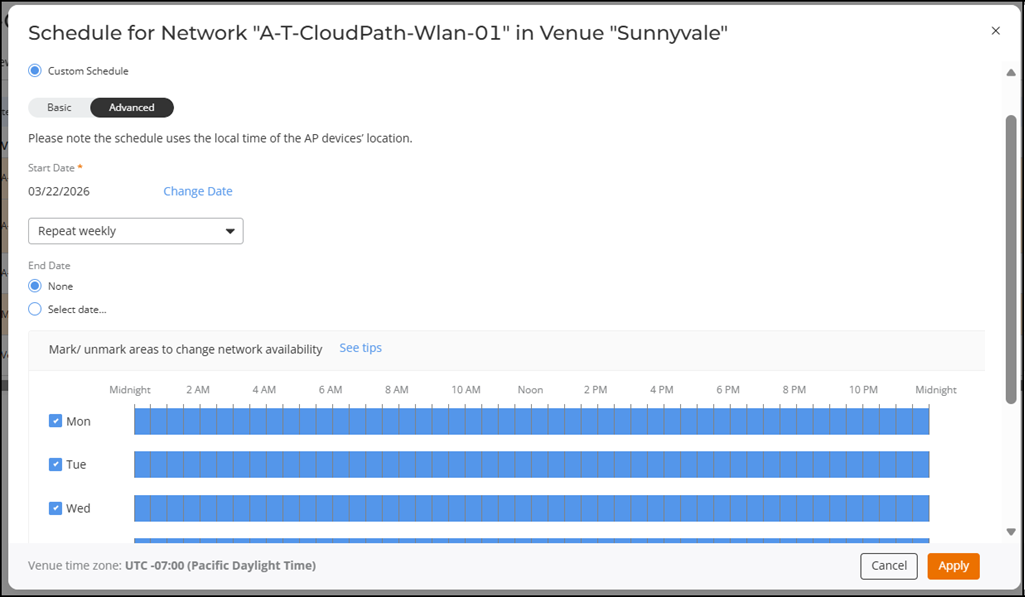
- Start Date:
Displays the date when the schedule begins. You can select any future date
using the date picker. The schedule always uses the local time of the AP
devices.Note: When the Start Date is today, time slots that have already passed are disabled.
- (Optional) Select a repeat
rule to determine how the network availability repeats after the Start Date.
The available options are Do not repeat
(default) and Repeat
Weekly. Note: The Do not repeat option displays a one‑time weekly schedule for the selected Start Date. The network automatically deactivates at the end of the last active time slot.
- End Date:
- Select None or
Select
date if Repeat Weekly
is selected. Pick an end date from the date picker when Select date is
chosen.Note: When the Select date is chosen, selecting a date from the date picker is mandatory.Note: If an End Date is selected, the schedule ends at midnight on that date.
- Select None or
Select
date if Repeat Weekly
is selected. Pick an end date from the date picker when Select date is
chosen.
- Mark the required time on the weekly grid to enable or disable network availability in fifteen‑minute intervals. You can click a single slot or click and drag to update multiple adjacent slots. A full day can be enabled or disabled using the checkbox next to each day. Dragging across a range of slots changes all slots to the opposite state of the first slot selected.
- Click See tips to view guidance on how to activate or deactivate the network for the entire day, individual time slots, or multiple adjacent time slots. The See tips option opens the Network Scheduler Tips window, which explains how to use the checkbox for full‑day selection, how to click individual slots, and how to drag across the timeline to update multiple time slots.
- Start Date:
Displays the date when the schedule begins. You can select any future date
using the date picker. The schedule always uses the local time of the AP
devices.
- Click Apply. The hyperlink displays the configured schedule, either 24/7, ON now, or OFF now. The day and time of the next change in network availability are displayed under the ON now and OFF now hyperlinks and also when you hover your cursor over the hyperlink.
- Click Custom Schedule to
customize the network schedule as required.
-
Click the All APs hyperlink in the
APs column or the list of
radios in the Radios column to
configure APs and radio-frequency bands for the selected venue.