Managing Pending AP Assets
You can view your list of purchased Access Points (APs) that are not yet claimed in RUCKUS One. For each AP, you can claim (effectively adding the AP to a venue managed by your account), hide (stopping the AP from appearing in the displayed list), or do nothing (leaving the AP in the list of Pending Assets). The option to hide devices allows you to proactively control the display of purchased RUCKUS devices that you do not plan to manage with RUCKUS One.
-
On the AP
sub-tab, review the following details:
- Serial #: Displays the unique serial number assigned to the AP.
- Source: Displays the origin from which the AP record was added, such as Salesforce or Manual import (CSV).
- Model: Displays the AP model.
- Ship Date: Displays the date when the AP was shipped.
- Created Date: Displays the date when the AP entry was created in the system.
- Claim Status: Displays the current claim state of the AP, such as Ready or Hidden.
- Connection Status: Displays the current operational state of the AP, such as Requires Attention, In Transient State, Setup Phase, Offline, or Operational.
- IP Address: Displays the internal IP address assigned to the AP.
- Ext. IP
Address: Displays the external IP address of the
AP.Note: The Connection Status, IP Address, and Ext. IP Address fields reflect the current connectivity and operational state of the device.
You can use the Search option to display only the entries matching a specific Serial #, Model, Source, Claim Status, IP Address, or Ext. IP Address. Additionally, you can filter the list by selecting an option from the drop-down menus for Model, Connection Status, and Created Date. The Model drop-down displays the available models configured in the system. The Connection Status options include Requires Attention, In Transient State, Setup Phase, Offline, and Operational. The Created Date calendar enables you to select a predefined or custom date range. The available date options are Last 1 Hour, Last 2 Hours, Last 4 Hours, Last 6 Hours, Last 8 Hours, Last 12 Hours, Last 24 Hours, Last 7 Days, Last 30 Days, and All Time. Click Clear Filters to remove the applied filters. The Created Date filter then resets to All Time if it was changed to another date option.
You can customize which fields appear in the AP table by clicking the
 icon and selecting or deselecting the desired column names. Drag and drop
individual column names up or down the list to customize the left‑to‑right
column display in the table. Optionally, you can click Reset to
default to restore the default subset of columns.
icon and selecting or deselecting the desired column names. Drag and drop
individual column names up or down the list to customize the left‑to‑right
column display in the table. Optionally, you can click Reset to
default to restore the default subset of columns. -
(Optional) Claim one or more
devices by clicking the associated checkbox(es) and then clicking Claim
Device.
Note: You can claim up to 10,000 devices at a time. Devices in a failed claim state can be selected and claimed again after the issue is resolved.The Claim Device sidebar is displayed.
Account Management - Pending Assets - AP - Claim Device 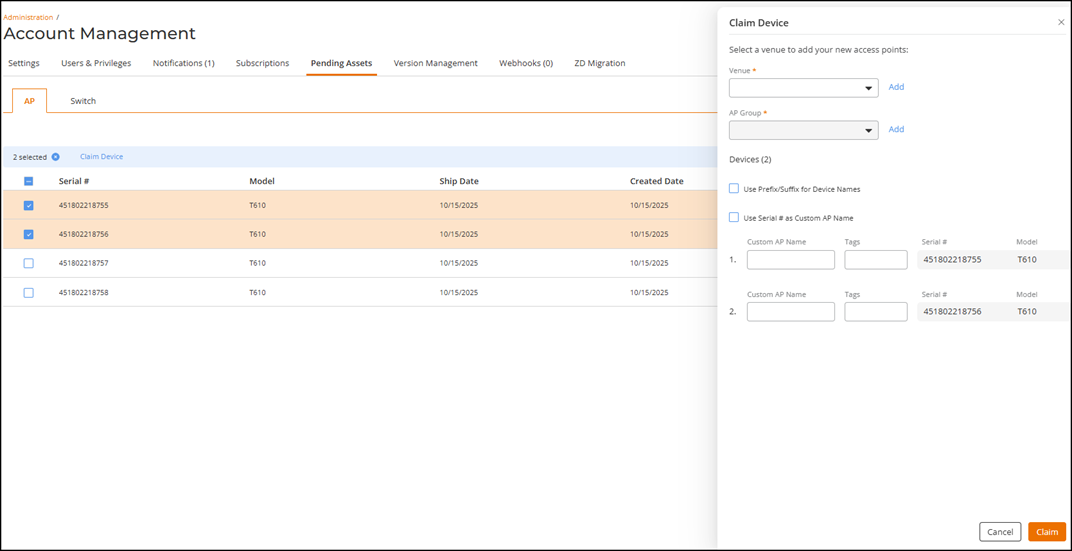
- Select the Venue
from the drop-down menu.
If the venue is not yet defined, you can create a new venue; click Add, complete the fields in the Add Venue sidebar, and click Add. You are then able to select the new venue from the Venue drop-down. Refer to Adding a Venue for information on how to add a new venue.
- Assign the device(s) to
an AP Group. The drop-down contains a default
setting that is populated based on whether the selected venue already
has an AP Group.
You may optionally create a new AP Group by clicking Add, completing the fields in the Add AP Group sidebar, and clicking Add to close the sidebar. You may then select the newly added AP Group from the AP Group drop-down. Refer to Adding an AP Group for information on how to add a new AP Group.
- (Optional) Click the
checkbox Use
Prefix/Suffix for Device Names and enter the
Prefix and Suffix
fields.
The system names the device by placing the prefix at the beginning, the custom name in the middle, and the suffix at the end.
- (Optional) Click the checkbox Use Serial # as Custom AP Name. The system auto-populates the Custom AP Name, Serial #, and Model; you may optionally define Tags.
- Click Claim.
The system validates that sufficient licenses are available. After a successful claim, the device is removed from the Pending Assets list and added to the selected venue. You can view the claimed device on the AP List page; for detailed page content descriptions, refer to AP List Overview.
- Select the Venue
from the drop-down menu.
-
(Optional) Click the
 icon to update the table with the most recent device data. Refreshing retrieves
the latest device information from the system, including newly available devices
and updated status details. Updated at displays the last
page update time and date.
icon to update the table with the most recent device data. Refreshing retrieves
the latest device information from the system, including newly available devices
and updated status details. Updated at displays the last
page update time and date.