You can create an AV Profile for ports
that connect audio-video devices, such as IP phones or cameras. Using an AV Profile helps
you apply the same settings to multiple ports so these devices receive the correct
configuration automatically.
Complete the following steps to create
an AV Profile:
Add the AV Profile service to your tenant account. From the navigation bar,
select Network Control > Service Catalog. Alternatively, you can select Network Control > My Services, then click Add Service.
Find the AV Profile tile
and click Add.
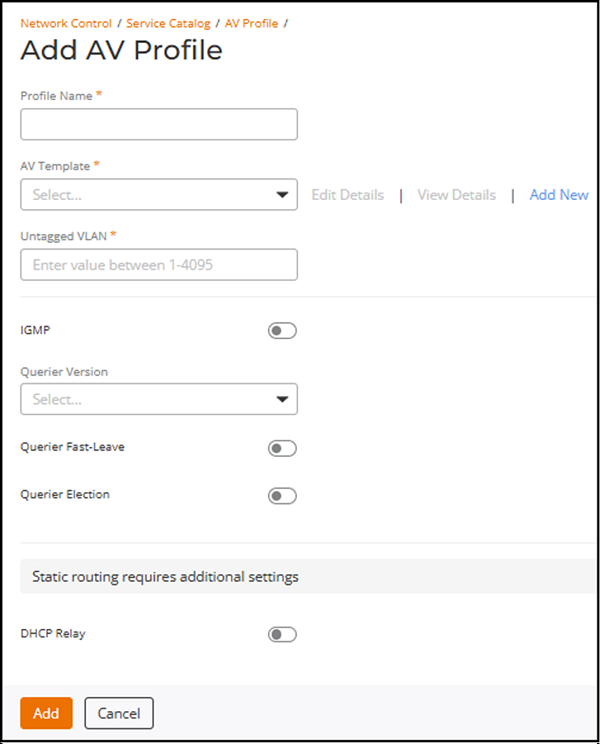
The Add AV Profile page is
displayed.Add AV Profile
Enter a Profile Name.
Note: The Profile Name cannot be
changed after the profile has been saved in RUCKUS One.
Select an AV Template from the
drop-down list.
If you are unsure of an
existing template’s configuration, you may select the template and click
View Details
to see its configuration. The View AV
Template sidebar displays the Template
Name, Multicast Version, Description,
and the PTPv2
status. It also includes a Quality of Service table showing the
QoS
Type, Value, and
Queue.
If a template having the necessary configuration is not available, click
Add New to create a new AV template. The
Add AV Template sidebar is displayed. Refer to
Adding and Managing AV Templates
for configuration details.
Enter a value between 1 and 4095
in the Untagged VLAN field.
Toggle the
IGMP switch on to enable multicast settings.
IGMP is disabled by default.
Querier
Version: Select the IGMP protocol version (V2 or V3)
that the switch should use on this VLAN. Choose the version required by
your AV devices.
(Optional) Querier
Fast-Leave: Enable Querier
Fast-Leave to stop multicast forwarding immediately when
a device sends a leave message.
(Optional) Querier
Election: Enable Querier Election
to allow the switch to act as the IGMP querier on the VLAN if
needed.
Querier IP
Address: This field appears only when Querier Election
is enabled. Enter the IP address the switch should use as the source for
IGMP queries.
Toggle the DHCP Relay switch
on to configure DHCP relay. When enabled, enter the following details:
VLAN
IP
Netmask
DHCP Server
IP
Click Add.
The new AV Profile is added to the AV Profile
page.