Adding and Managing AV Templates
You can create and manage AV Templates to define the settings used for audio-video devices on your network. AV Templates help you apply consistent configurations, such as VLANs, QoS, and device handling, to multiple AV Profiles or switch ports.
-
From the navigation bar, select
Network
Control > My
Services.
The My Services page is displayed.
-
In the My
Services page, click AV Profile.
The AV Profile page is displayed, defaulting to the Profiles tab.
-
Click the AV
Templates tab.
Alternatively, you can create a new template by clicking the Add New option while creating a new AV Profile. Refer to Adding an AV Profile for more details.
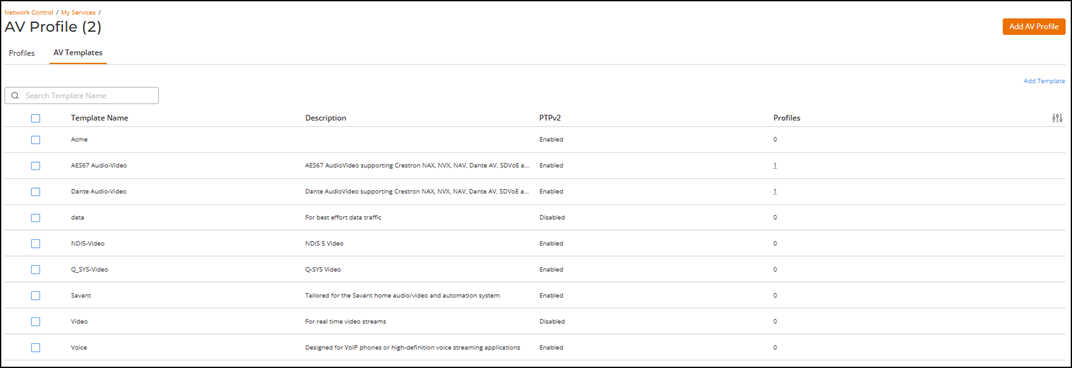
AV Profile - AV Templates Tab
-
Click Add Template.
The Add AV Template sidebar is displayed.
- Enter a Template Name.
- Select the required multicast version from the Multicast Version drop-down list.
- (Optional) Enter a Description for the template.
- (Optional) Toggle the PTPv2 switch on, if the template requires Precision Time Protocol support.
-
Complete the following steps to
configure DSCP Quality of Service:
-
Click Add.
The Add Quality of Service sidebar is displayed. The QoS Type is DSCP (Layer 3 QoS) and cannot be modified.
- Select a Value. Available values are 0 through 63.
- Select a Queue. Available queues are 0 (lowest priority queue) through 7 (highest priority queue); packets with higher priority classifications are given precedence for forwarding.
-
Click Add.
The added QoS rule appears in the QoS table.Note: To learn more about QoS for RUCKUS ICX switches, refer to the RUCKUS FastIron QoS and Traffic Management Configuration Guide.
-
Click Add.
-
Click Add.
The new AV template is added to the AV Templates page. The AV Templates page displays all AV templates available in the system, along with their Description, PTPv2 status, and the number of Profiles using each template.
You can use the Search option to display only the table entries matching the specified template name; enter a minimum of two characters. You can customize which fields appear in the AV Template table by clicking the
icon and selecting or deselecting the desired
column names. Optionally, you can click Reset to
default to restore the default subset of columns.Click Clear Filters to reset the filters. You can sort the list by clicking the associated column header.
-
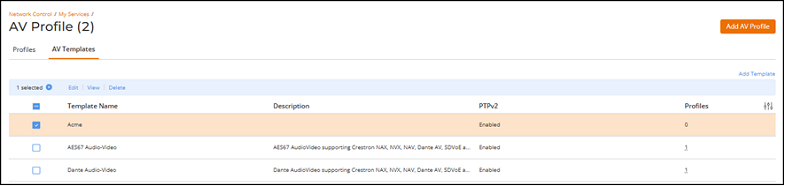
Select the checkbox next to the
Template
Name column to display and access the following options:
- Edit
- View
- DeleteNote: Default AV Templates and any templates currently used by an AV Profile, cannot be edited or deleted.
AV Profile - AV Templates Management Options 
-
(Optional) Click Edit to edit the
AV Template.
Update the required fields in the Edit AV Template sidebar:
- Select the Multicast Version from the drop-down list.
- Update the Description if needed.
- Toggle the PTPv2 switch on or off.
- Review the existing QoS rules. You can edit or delete an existing QoS rule by selecting the checkbox and clicking Edit or Delete, or click Add to create additional QoS entries.
- Click Save.
-
(Optional) Click Delete to delete
the AV Template.
A confirmation dialog is displayed. Review the message and click Delete.
- (Optional) Click View to see the configuration of the selected template. The View AV Template sidebar displays the Template Name, Multicast Version, Description, and the PTPv2 status. It also includes a Quality of Service table showing the QoS Type, Value, and Queue.