You can add a Property Management
System (PMS) service in RUCKUS One to integrate with a supported
PMS and enable the secure exchange of property, room, and guest information.
Note: Before entering PMS configuration values, collect the
required OPERA OHIP credentials. Refer to Collecting PMS Credentials from OHIP for more
details.
Complete the following steps to add
a Property Management System service:
Add the Property Management
System service to your tenant account. From the navigation bar, select
Network
Control > Service
Catalog.
Find the Property Management
System tile (widget) and click Add.
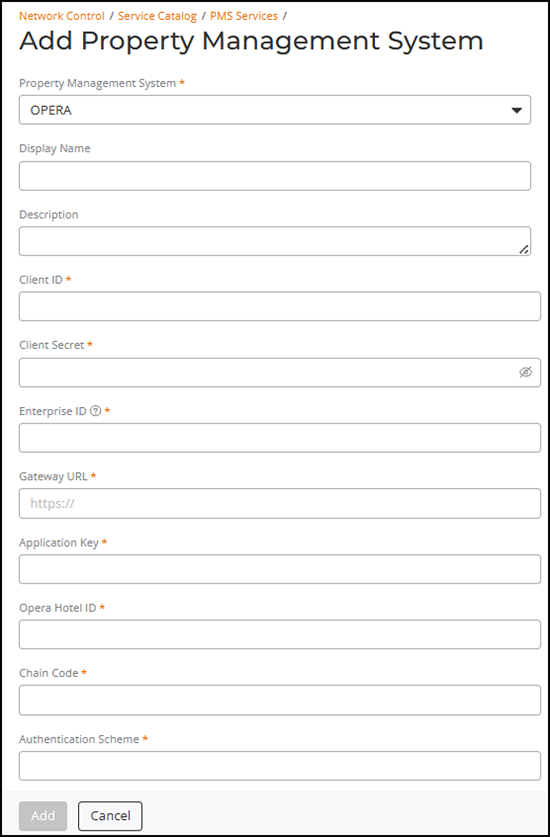
The Add Property Management
System page is displayed.Add Property
Management System
Select the Property Management
System from the drop-down list.
Note: OPERA is currently the only third-party PMS
supported for integration with RUCKUS One.
(Optional) Enter a Display
Name.
(Optional) Enter a Description.
Enter the Client
ID provided by the Property Management System.
Enter the Client Secret provided by the Property
Management System.
Enter the Enterprise ID associated with your Property
Management System account.
Enter the Gateway URL used for PMS API
communication.
Enter the Application Key required to access PMS
APIs.
Enter the Hotel ID assigned
in the PMS system.
Enter the Chain Code that identifies the hotel
chain.
Select the Authentication Scheme used for API
authentication.
Enter the Authentication Scope to define the access
level.
Enter the WebSocket URL for receiving real-time PMS
events.
Click Test Connection to verify the connection
details.
The system validates the
PMS configuration. If the test succeeds, a toast notification confirms the
connection; if it fails, an error dialog instructs you to contact
Support.
Click Add.
The Property Management
System service is created and added to your account.