You can replace a failed ICX switch with
another ICX switch of the same model.
Ensure that the following requirements are
met:
The replacement switch is the
same model as the original switch.
The original switch has a
successful cloud configuration backup. The replacement process uses the latest
available successful cloud configuration backup, regardless of whether the
original switch is online.
Both switches must be standalone
switches. Switch stacking is not supported.
Attention: Replacing the switch deletes the
original switch from your account.
Complete the following steps to replace a
failed ICX switch:
On the navigation bar, select
Wired >
Switches > Switch
List.
The Switches page is displayed.
(Optional) Create a manual configuration backup when the original switch is
online and you want the replacement switch to inherit the latest configuration
changes.
Perform this step if
configuration changes were made after the most recent successful backup.
Otherwise, the replacement process uses the latest available successful cloud
configuration backup.
Click the switch name.
The switch details page is displayed, defaulting to the
Overview tab.
Select the switch that you want
to replace and click Replace.
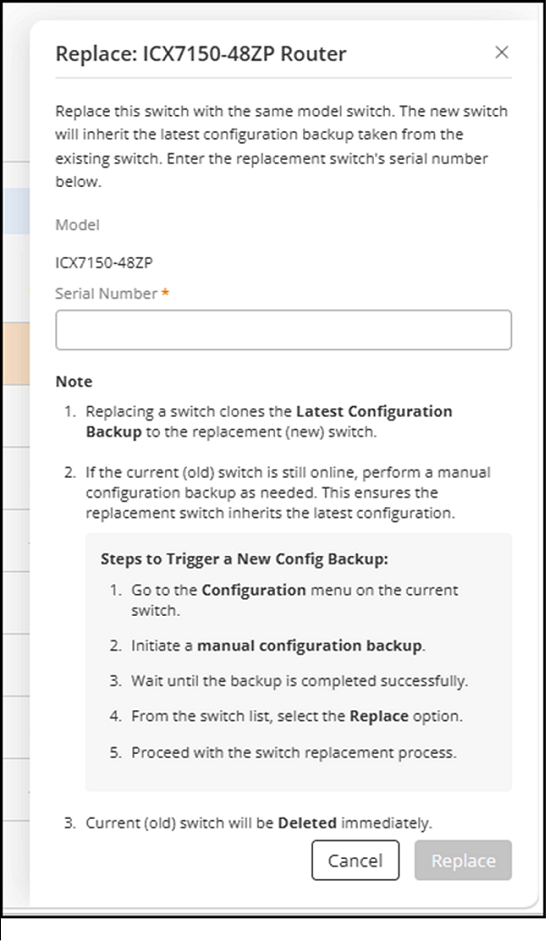
The
Replace sidebar is displayed.Replace
Sidebar
Review the switch model
displayed in the Model field and the replacement information shown in the
Replace sidebar.
Enter the serial number of the replacement switch in the Serial
Number field.
Click Replace.
The replacement
confirmation dialog is displayed.
Enter Delete in the
confirmation field and click Replace.
The replacement process
begins.
Note: The current switch is deleted immediately
after the replacement process begins.
Note: If
the firmware versions do not match, RUCKUS One upgrades
the replacement switch firmware before restoring the configuration. The
replacement switch reboots and reconnects during the firmware upgrade
process. After the firmware versions match, RUCKUS One restores
the configuration backup from the original switch to the replacement switch.
Because the replacement process uses configuration backup and restore, the
replacement switch reloads during the configuration restoration
process.
Wait for the replacement process to complete.
The replacement switch
becomes operational with the configuration of the original switch. The original
switch is removed from the account as part of the replacement process.
Note: After the replacement process completes, the
replacement switch records the serial number of the original switch as
replacement information.