Adding a Webhook
You can add a webhook and define the incidents, activities, and events that trigger notifications.
- Add the Webhook service to your tenant account. From the navigation bar, select Network Control > Service Catalog. Alternatively, you can select Network Control > My Services, then click Add Service.
-
Find the Webhooks tile (widget) and
click Add.
The Add Webhooks page is displayed.
Add Webhooks 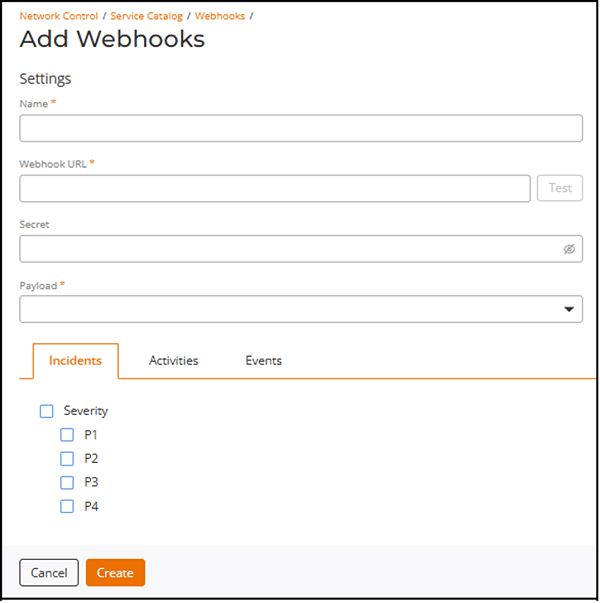
- Enter a unique name in the Name field.
-
Enter the destination endpoint in the Webhook URL field.
Note: The Webhook URL field supports URLs up to 4096 characters. If the entered URL exceeds this limit, an error message is displayed and the webhook cannot be created until the URL is corrected.
Table 1. Configuring the Webhook URL in Different Platforms Tool Reference to Create Incoming Webhook ServiceNow ServiceNow payload the same as Ruckus payload (incident, activity, event), but for backward compatibility the secretremains inside the payload body and is validated by the ServiceNow script (data.secret).Documentation URL:
Webhook URL Example:
https://dev187130.service-now.com/api/1602381/ruckuswebhook/notificationPayload: Refer to Configuring a ServiceNow Scripted REST API Endpoint for Webhook Integration for more details.
Microsoft Teams Documentation URL:
Webhook URL Example:
https://commscope.webhook.office.com/webhookb2/9ee5a30e-38f5-4d17-8bb7-1c4af721b2fe@31471f81-8fe4-49ec-8bc3-fa1c295640d7/IncomingWebhook/30dbf8413ea2421890d1a5d1e45481b4/e36aca5e-5c9e-4549-9a29-761977b3798a/V2wg7zMjjRZmGM3DTJB2rQ9A5ynttxrH1qJOaxzjUyn141Note: Microsoft Teams incoming webhook URLs can be longer than 255 characters and are fully supported up to 4096 characters.Payload: Forward the RUCKUS payload body as JSON
Slack Documentation URL:
https://api.slack.com/messaging/webhooks
Webhook URL Example:
https:// hooks.slack.com/services/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Payload: Forward the RUCKUS payload body as JSON in
"text"or as structured JSON per your Slack app needsSplunk Documentation URL:
Webhook URL Example:
https://${splunk cloud instance
                      hostname}:8088/services/collector/event
Secret for Authentication:
Authorization: Splunk <token>Payload: Send the RUCKUS payload under Event.
DataDog Documentation URL:
https://docs.datadoghq.com/api/latest/events/?code-lang=curl&site=us5
Webhook URL Example:
https://${Datadog cloud
                        instance hostname}/api/v1/events
Webhook Secret for Authentication:
${API KEY}Payload Example:curl -X POST " " \\ -H "Accept: application/json" \\ -H "Content-Type: application/json" \\ -H "DD API KEY: df4adc98f49abb3659715f7d15d4be48" \\ -d '{ "title": "$WEBHOOK_CONFIGURATION_NAME", "text": "$RUCKUS_PAYLOAD", "tags": ["$WEBHOOK_CONFIGURATION_ID", "$WEBHOOK_CONFIGURATION_TYPE", "$WEBHOOK_CONFIGURATION_NAME"], "alert_type": "info", "source_type_name": "ruckus" }'PagerDuty Documentation URL: Refer to Change section in https://developer.pagerduty.com/docs/events-api-v2-overview
Webhook URL Example:
https://events.pagerduty.com/v2/change/enqueue
Secret for Authentication:
Use the Integration Key (from Events API V2 integration) as the
routing_keyin the JSON body.Payload Example:{"routing_key":"25c24b83f4a6490bc015aa8c2731ca76","payload":{"summary":"Ruckus event","source":"Ruckus Cloud","custom_details":{ $RUCKUS_PAYLOAD }}}RUCKUS One Ruckus payloads differ by type - incident, activity, or event. If a secret is configured, it is sent in the HTTP Authorizationheader.After you select RUCKUS as the payload in the webhook configuration, the system delivers payloads in the formats shown below.
Payload Example :
RUCKUS One outbound webhooks are delivered to the destination URL that the user configures in the webhook settings.Ruckus Analyst incidents example: { "id": "1400136c41dc4095b70e9e38d8838d46", "name": "webhook-1", "type": "incident", "secret": "12345678", "tenantId", "327fc706f28a48de9bbf3c6bcac657a2", "payload": { "id": "38d4a8eb-2dd2-44dd-beaa-70a96b657576", "status": "new", "severity": "P3", "link": "https://dev.alto.mlisa.io/api/a4rc/incidents/38d4a8eb-2dd2-44dd-beaa-70a96b657576?selectedTenants=WyIzMjdmYzcwNmYyOGE0OGRlOWJiZjNjNmJjYWM2NTdhMiJd", "title": "Sample incident in Access Point: AP Name (AA:AA:AA:AA:AA:AA)", "category": "Connection", "subCategory": "EAP", "startTime": "2020-10-27T21:15:00.000Z", "endTime": "2020-11-01T08:00:00.000Z", "duration": "4d 10h", "impactedAreaType": "Access Point", "impactedAreaName": "AP Name (AA:AA:AA:AA:AA:AA)", "impactedAreaHierarchy": "Venue Name (Venue) > AP Group Name (AP Group) > AP Name (AA:AA:AA:AA:AA:AA) (Access Point)", "clientCount": 28, "impactedClientCount": 6, "impactedClientPercentage": "21.43%", "rootCauses": "Sample incident root causes:\n 1. Root cause 1\n 2. Root cause 2", "recommendations": "Sample recommended actions to address incident:\n 1. Action 1\n 2. Action 2\n 3. Action 3" } } Ruckus Activities { "id": "6bb5cf0c193d4dca860eab45dc328a73", "name": "webhook-1", "type": "activity", "payload": { "id": "38d4a8eb-2dd2-44dd-beaa-70a96b657576", "requestId": "d9b509d0-82b8-44fa-aae1-ebbce86a5044", "tenantId": "327fc706f28a48de9bbf3c6bcac657a2", "adminName": "Melvin Wu", "adminEmail": "mwu100@email.com", "product": "WEBHOOK_PRODUCT_GENERAL", "status": "SUCCESS", "message": "Venue Sunnyvale Ruckus was added", "useCase": "AddVenue", "entityId": "718da5495f204f6ebc19fd52ea7d9ed7", "startDatetime": "2025-01-13T23:32:20Z", "endDatetime": "2025-01-13T23:32:20Z", "steps": [ {"message": "AddVenue", "status": "SUCCESS", "startDatetime": "2025-01-13T23:32:20Z", "endDatetime": "2025-01-13T23:32:20Z"} ] } } Ruckus Events { "id": "7ed9d4c2567e483e8aecba5478868128", "name": "webhook-1", "type": "event", "payload": { "id": "38d4a8eb-2dd2-44dd-beaa-70a96b657576", "eventCode": "101", "eventName": "ApDiscoveredCloudController", "tenantId": "6ea7a69c59e24fd9913d17b7960d7a7a", "timestamp": "1736822049", "datetime": "2025-01-14T02:34:09Z", "severity": "WEBHOOK_SEVERITY_INFO", "entityType": "WEBHOOK_EVENT_AP", "product": "WEBHOOK_PRODUCT_WIFI", "attributes": [ {"name": "serialNumber", "value": "312339001086"}, {"name": "zoneName", "value": "805543a84bbf4dd78e338a0166f2246e"}, {"name": "apGroupName", "value": "7a9af2715f2a466a93ad1d72a6ca4e13"}, {"name": "venueId", "value": "805543a84bbf4dd78e338a0166f2246e"}, {"name": "apName", "value": "R770-312339001086"}, {"name": "apMac", "value": "A8:0B:FB:0F:9A:90"}, {"name": "domainName", "value": "6ea7a69c59e24fd9913d17b7960d7a7a"}, {"name": "macAddress", "value": "A8:0B:FB:0F:9A:90"}, {"name": "deviceGroupId", "value": "7a9af2715f2a466a93ad1d72a6ca4e13"} ] } } Ruckus Admin Events { "id": "6bb5cf0c193d4dca860eab45dc328a73", "name": "webhook-1", "type": "event", "payload": { "eventCode": "login-001", "tenantId": "327fc706f28a48de9bbf3c6bcac657a2", "timestamp": "1736818174", "datetime": "2025-01-14T01:29:34.481Z", "severity": "WEBHOOK_SEVERITY_INFO", "entityType": "WEBHOOK_EVENT_ADMIN", "attributes": [ {"name": "tenantType", "value": "REC" }, {"name": "adminName", "value": "Melvin Wu"}, {"name": "ipAddress", "value": "134.242.136.12"}, {"name": "userName", "value": "mwu100@email.com"}, {"name": "eventDescription", "value": "Admin Melvin Wu, mwu100@email.com logged into the cloud controller"} ] } } -
Click Test to send a sample payload
to the configured webhook URL and verify connectivity.
A toast notification appears at the bottom of the page indicating success or failure. If the request fails, a dialog box is displayed with a message instructing you to contact support.
Note: The Test action is available only when the Webhook URL is valid and within the supported length limit. - (Optional) Enter a value in the Secret field if required by the receiving system.
- Select a payload format from the Payload list. The options are RUCKUS One, DataDog, Microsoft Teams, PagerDuty, ServiceNow, Slack, and Splunk.
-
Configure notification categories on the
tabs, as needed:
Note: Use the parent checkbox on any tab to select all sub‑options in that group, or select individual sub‑options as needed.
- Click the Incidents tab and choose severities as needed. The options are P1, P2, P3, and P4.
- Click the Activities tab and choose products as needed. The options are General, Wi-Fi, Switch, or RUCKUS Edge.
- Click the Events tab and choose event criteria as needed. The options are:
- Severity: Critical, Major, Minor, Warning, Informational
- Event Types: AP, Security, Client, Switch, Admin, Network, RUCKUS Edge, Profile
- Products: General, Wi-Fi, Switch, RUCKUS Edge
- Toggle the Enabled switch on to activate the webhook.
- Click Create.