Editing or Deleting an AV Profile
You can edit or delete an AV Profile to update its configuration or remove it when it is no longer needed.
- Profiles that are in use cannot be edited.
- Deleting an assigned AV Profile does not remove the AV settings that are already applied to switches.
Complete the following steps to edit or delete an AV Profile:
-
From the navigation bar, select
Network
Control > My
Services.
The My Services page is displayed.
-
In the My
Services page, click AV Profile.
The AV Profile page is displayed, defaulting to the Profiles tab.
By default, the Profiles tab displays all AV Profiles created in the account, including details such as Profile Name, Template, Untagged VLAN, IGMP status, DHCP Relay status, and the number of associated Switches and Venues. You can customize which fields appear in the AV Profile table by clicking the
icon and selecting or deselecting the desired
column names. Optionally, you can click Reset to
default to restore the default subset of columns.You can use the Search option to display only the table entries matching the specified Name or AV Template; enter a minimum of two characters. Click Clear Filters to reset the filters. You can sort the list by clicking the associated column header.
-
Select the checkbox next to the
Name
column to display and access the following options:
- EditNote: An AV Profile cannot be edited if it is currently assigned to any switch.
- DeleteNote: Deleting an AV Profile that is still assigned to switches does not remove the configuration already applied to those switches.
- Edit
-
(Optional) Click Edit to edit the
AV Profile configuration.
Note: The Profile Name cannot be changed.The Edit AV Profile page is displayed. Modify the following configuration settings, as necessary:
-
Select an AV Template from
the drop-down list.
Click View Details to view the configuration, Edit Details to edit the configuration, or Add New to add a new template.Note: Default AV Templates cannot be edited or deleted. Templates that are used by an AV Profile also cannot be edited or deleted, and an AV Profile cannot be edited when it is assigned to a switch.
- Update the Untagged VLAN value.
- Enable or disable Querier Fast-Leave and Querier Election.
- Enter a Querier IP Address if needed.
- Enable or disable DHCP Relay; enter or update the VLAN IP, Netmask, and DHCP Server IP settings if enabling DHCP Relay.
- Click Apply.
-
Select an AV Template from
the drop-down list.
-
(Optional) Click Delete to delete
the AV Profile.
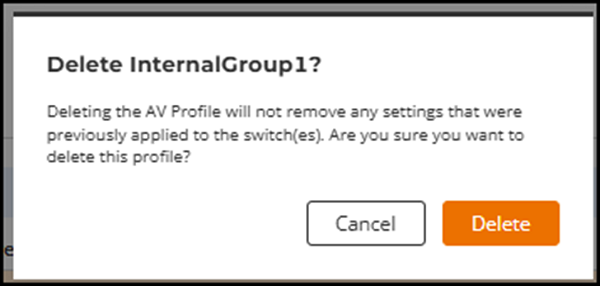
A confirmation dialog is displayed, indicating that deleting the AV Profile will not remove any settings previously applied to the switches. Click Delete.
Delete - Confirmation Message 
-
(Optional) Click the AV Profile
Name
to view the configuration details. The details page displays all profile
settings, including the Untagged VLAN,
IGMP
status, Querier
Version, Querier
Fast-Leave, Querier Election,
and DHCP
Relay status.
The Instance section lists all switches where this AV Profile is applied.
You can search for a switch by name or filter the list by Model and Venue.
If no switches are associated, the table displays No Data. Use the Configure button to access the Edit AV Profile page.