Applying a Configuration Template Bundle
You can use configuration bundles to organize and manage related templates in a hierarchical view, where each top-level template is linked to one or more downstream templates. This feature supports multiple viewing modes and provides top-level actions to apply, monitor, or manage configuration templates efficiently across the network.
-
Expand the bundle by clicking
the
 icon next to the template name to view the
downstream templates.
icon next to the template name to view the
downstream templates.
-
Click Apply
Bundle.
The Apply Templates - Customers sidebar appears, displaying the following details:
- Customers: Displays the customer names.
- Status: Displays the status of the customer account (Active, Inactive, or Trial).
- Address: Displays the customer’s registered address.
- Customer Tags: Displays the tags associated with the customer.
- Venue Override
Value: Displays the configured venue override name with
an
 icon. If no value is configured, the field
is displayed as empty. This table column appears only for Venue
type bundles, not for Network
type bundles.
icon. If no value is configured, the field
is displayed as empty. This table column appears only for Venue
type bundles, not for Network
type bundles.
You can use the Search option to display only the table entries matching the specified Customers or Customer Tags; enter a minimum of two characters. You can customize which fields appear in the table by clicking the
 icon and selecting or deselecting the desired column names. Optionally,
you can click Reset to default to restore the default
subset of columns.
icon and selecting or deselecting the desired column names. Optionally,
you can click Reset to default to restore the default
subset of columns.Click Clear Filters to reset the filters. You can sort the list by clicking the associated column header.
-
Select one or more customers to
apply the selected bundle by selecting the checkboxes.
The Override Template option is displayed, and the Next button is enabled.
Apply Templates - Customers 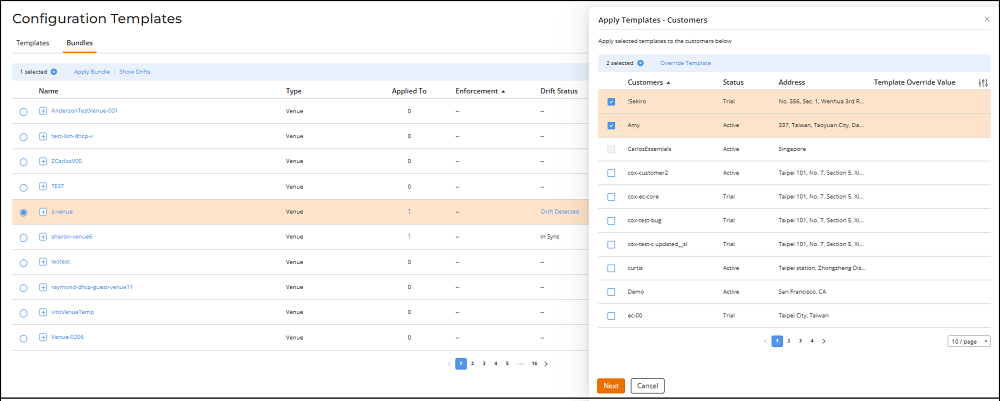
-
(Optional) Click Override Template to create a
customer-specific version of the selected venue template.
The Override Venue Template dialog box is displayed.
Override Venue Template 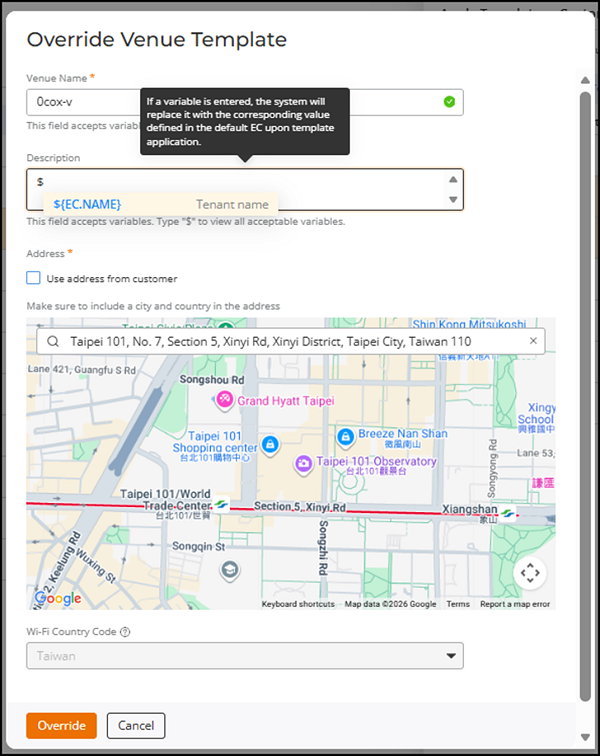 Enter or update the required details in the Override Venue Template dialog box:
- Venue
Name: Displays the current venue name. Enter or
update the venue name as needed. Type the $
character to view available variables, such as
${EC.NAME}.When the template is applied, any variable entered is replaced with the customer account name. If no customer has been selected yet, the variable remains visible as typed until the confirmation stage.
- (Optional)
Description: Displays an empty or existing
description. Enter or update the description. Type the $
character to view and insert available variables, such as
${EC.NAME}.When the template is applied, any variable entered is replaced with the customer account name. If no customer has been selected yet, the variable remains visible as typed until the confirmation stage.
- (Optional) Tags: Enter identifiers for easy searching or grouping.
- Address: Displays the existing address for the
venue. Enter a new address or update the current address,
including street, city, and country details.
- Select
Use
address from customer to replace the
displayed address with the address stored in the
customer account. This ensures that the customer’s
address is applied. The map updates automatically to
reflect the entered or selected address.Note: Variables cannot be typed into the Address field. Only the Use address from customer option supports automatic address substitution.
- Select
Use
address from customer to replace the
displayed address with the address stored in the
customer account. This ensures that the customer’s
address is applied. The map updates automatically to
reflect the entered or selected address.
- Wi-Fi Country Code: This field is
read-only. The country code can be added only when creating a
Venue Template. Refer to the RUCKUS One User Guide for configuration
details related to adding a venue.
The Wi-Fi country code defines the Wi-Fi channels and power levels available for access points at the venue. In most cases, it matches the venue’s location and does not need to be changed.
- Click Override to save the override configuration for
the selected customer(s).
The Venue Override Value column displays the venue name.
Hover over the
icon to view the final values
that will be applied for each customer.
- Venue
Name: Displays the current venue name. Enter or
update the venue name as needed. Type the $
character to view available variables, such as
-
Click Next to
proceed to the confirmation screen of the Apply Templates -
Customers sidebar.
The confirmation view displays the Selected customers along with the Venue Override Value for each customer and the Selected Templates. Venue Override Value is displayed only when the template Type is set to Venue and the value is configured; for Network templates, Venue Override Value is not displayed.
Hovering over the
shows the final values that will be
applied after variable substitution. If variables were entered in
fields such as Venue
Name, Description, or Address, these fields appear with the
customer‑specific values in the confirmation preview.Note: When applying configuration templates, all configurations in the selected templates are applied to the selected customers. During this process, the template settings replace the existing settings in each customer’s venue. Ensure that the customer access points are running a firmware version that is compatible with the template, and update the firmware if necessary.
-
(Optional) Click Override Template to create a
customer-specific version of the selected venue template.